Submit a Portfolio Request to have budget allocated to your most important initiatives.
The demand for funding of initiatives typically exceeds the capital available. It is the responsibility of Sponsors to prioritize the initiatives to be included in the budget. The selection and request for approval of priority projects is managed through portfolio requests. Initiatives can be manually selected, or the selection can be systematically optimized.
The capital controller will approve or reject individual area/group portfolio requests, while area managers and sponsors can only review area portfolio requests, both with reference to planned top-down capital allocations. Once all area capital allocations are approved, the budget version is completed, and all initiatives are updated with the budgeted amount. If an initiative is at the Proposal Stage, it will automatically be transitioned to the Business Case stage on budget version completion.
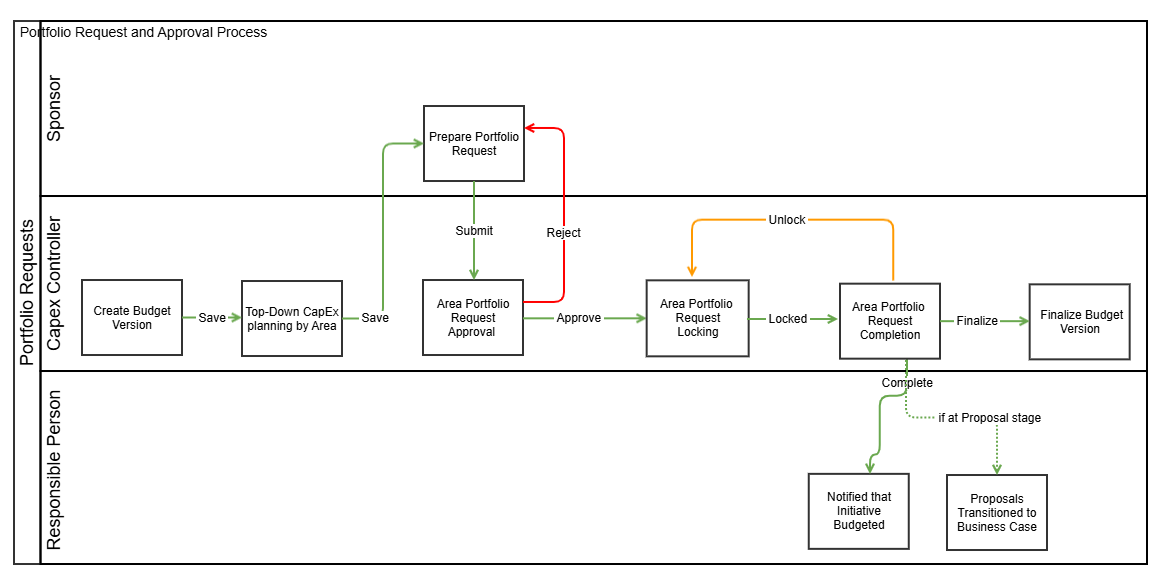
Key Concepts
Budget versions are managed by the Capital Controller. New portfolio requests may be submitted multiple times until the budget version is finalized.
Capital budgeting is done on a yearly basis. For multi-year initiatives, the planned expenditure will need to be included in each budget year.
Capital Controllers allocate a planned capital target by area.
Portfolio requests are submitted by planning areas. All initiatives in the child areas of a planning area are included in that planning area’s portfolio request.
Sponsors will only see the areas to which they are assigned and will have access to initiatives within those areas
Sponsors will see and be able to edit areas they sponsor (including subordinate areas).
An area will not be selectable if it is inactive or not a planning level. Higher-level nodes are shown to complete the tree but are not selectable if the current user is not a sponsor of that area.
Only the Area Sponsor can prepare and submit portfolio requests for planning levels.
Target can be constrained in Total and by Investment Reason.
Initiative prioritization can be manual, or automated based on Overall Score, Benefit, Alignment, Confidence, or Net Present Value (NPV).
Initiatives that have previously been budgeted and approved (also referred to as projects) cannot be deselected.
The Portfolio Comparison report helps identify changes between one budget version and another (e.g. previous or original).
The budgeted value is based on the Planned cost approved by the Sponsor. Specifically:
The ‘Budget Required’ for the budget year is either:
a) previously budgeted amount (default)
b) if status is 'Budget Requested' - the planned amount
c) if it has capex approval history, then it is the approved amountBudgeting based on forecast:
If budgeting based on forecast is disabled for projects:
The system displays the greater of the planned amount and the approved amount.If budgeting based on forecast is enabled for projects:
If a forecast exists for the current period, the forecast amount is displayed.For initiatives that are not in the project stage:
The Budget Required value is based on the planned amount.
The target constraint is based on the CapEx cost of an initiative as OpEx costs are the responsibility of the Sponsor themselves.
Budgeted amounts are distributed by month for analytics purposes based on the planned costs (if a financial analysis has been prepared) or distributed equally over the project duration specified in the initiative.
Initiatives are only available for inclusion in a portfolio request if the expenditure is expected to occur within the applicable budget year based on planned start and capitalization dates.
Instructions
Click Create > Portfolio Request from the menu.
Select the relevant budget year version. If no budget version is active for a year, it is not possible to prepare a Portfolio Request for that year.
All Areas that you are authorized to submit Portfolio Requests for are listed, together with their current status:
Outstanding: Portfolio Request due for submission.
Submitted: Portfolio Request with Capex Controller for Approval - can be displayed only.
Rejected: Can be adjusted and resubmitted in accordance with Controllers Comments.
Select an Area by clicking on the Area name.
If automatic project prioritization is desired, activate the Auto-Select option, and select your optimization strategy. The system will optimize that dimension within your capital constraints.
Select or deselect initiatives as required.
Use the grid column layout configuration to include or hide additional information. Use grid filters focus on initiatives that meet certain threshold criteria. For example, select only initiatives with a positive NPV.
Click the Accounting View to see the expected impact of the current Portfolio selection on future cashflows and accounting profits.
In the Accounting View Chart tab, select/deselect key measures by clicking on the legend.
The Accounting View Classification tab provides a view of the included initiatives summarized by the financial classification (generally general ledger account) applicable to the underlying activity.
Click Draft to preserve the current selection. You can exit the application and return later, if required.
Click Submit to route the Portfolio Request for Capex Budget Approval.
Once submitted, a request cannot be resubmitted unless it is rejected by the Capital Controller. Before resubmission, sponsors must click Revise and then select the initiatives they want to submit for budgeting.
Only Area Sponsors can edit and submit Portfolio Requests.
Automate portfolio selection based on criteria such as Overall Score and Net Present Value.
It is possible to submit a Portfolio Request for an amount exceeding the planned target. It is then up to the Capex Controller to reallocate funding accordingly or reject the request.
The Portfolio Request transaction can be conveniently exported for status management.
An audit log is available. To view it, open the area’s portfolio request and switch to the Audit tab.
The Progress Forecast column uses forex rates from either the Forecast exchange or the Planning exchange rate source, based on the administrator’s configuration.