Workflow Overview
Stratex Workflow is defined in 2 parts:
Standard Workflow rules apply to the transition of an initiative through Area Management and Sponsor Approval. This flow is pre-determined and based on the Area Manager and Sponsor role assignments in the Organizational Structure.
Delegation of authority (DoA) Workflows are designed to support the specific approval policies of an organization in the approval of Business Cases to become projects and for Supplementary funding requests.
The following Steps outline the DoA Approval Workflow configuration:
Approval Matrices - An approval matrix defines the requirements for a Role (e.g. CFO) to be involved in the approval process. This is typically a value limit but can also include additional attributes such as investment reason or asset class.
Sequences - Sequences define the order of approval by required Roles (e.g. Finance Manager approval before CFO).
Roles - The workflow roles defined in the organization’s delegation of authority chart. Roles can be unique (e.g. CEO) or generic (e.g. Plant Manager).
Agents - Role are fulfilled by individual agents. These agents can be defined centrally (typically for corporate roles (e.g. Adam Smith is the CEO) or by area (e.g. Rebecca White is the Plant Manager of Sydney).
Escalation Rules - Escalation rules define the reminder frequency and potential automatic escalation of assigned approval requests.
Delegations - Where an individual is out of office, or has otherwise delegated their approval tasks to another person, these time-based delegation rules can be maintained.
Test - A test harness allows the workflow configuration rules to be validated prior to implementation.
Accessing Workflow
To access the Workflow page, click on the Workflow button under the Configuration section of the left-hand navigation bar.
When setting up the Workflow, the sections are best completed in the following order: Sequences, Roles, Approval Matrix, Agents and if required: Escalation Rules, Delegations.
It is possible for the Administrator to access and approve on behalf of any person in the workflow. If they do this, the audit trail will reflect the approval but will note that the Administrator approved on behalf of the person in the workflow. In addition, the person, on behalf of whom the approval was made, will receive an email advising them that the Initiative has been approved by the Administrator on their behalf.
Approval Matrices
An Approval Matrix allows the user to configure the Delegation of Authority workflow to ultimately determine the Role to which an Initiative should go based upon the parameters in the matrix.
Multiple Workflow matrices can be configured, however, only one workflow matrix is active at a time. This enables new workflow rules to be configured for a future period, without disrupting current workflow implementation.
Start by Adding a new matrix and labelling it with a brief descriptor.
Add lines to the matrix to specify the criteria for including an approval Role. The Roles are configured under the Roles tab and should normally be defined prior to configuring the approval matrix.
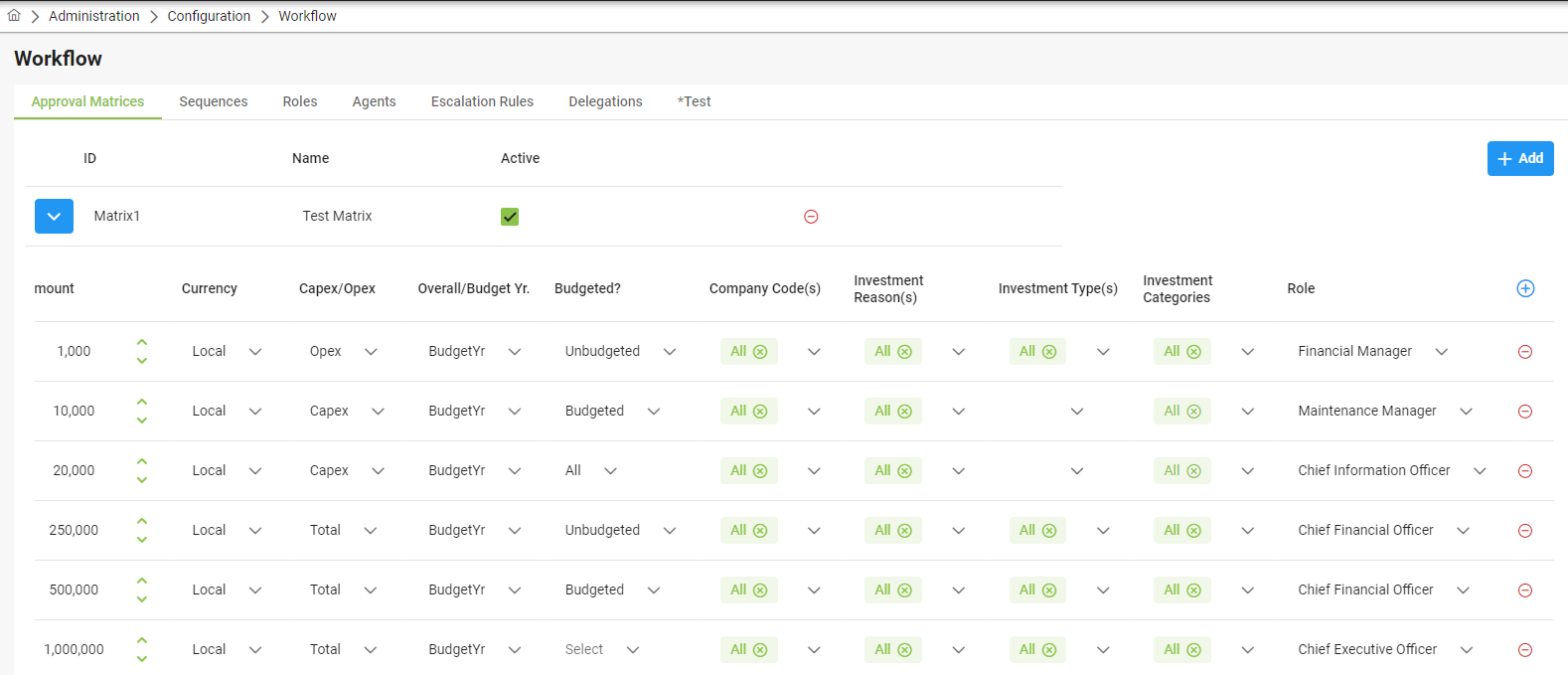
The parameters that can be configured are Amount, Currency, Capex/Opex, Overall/Budget Yr, Budgeted?, Company Code, Investment Reason, Investment Type, Investment Categories and then finally link the required approval Role.
Amount
The Amount is the absolute amount, and any amount can be entered. For all Initiatives with an amount that is equal to or greater than this amount and which meet all the Parameters, the workflow will then include the Role selected. In the example above, if the Amount is ‘1500' then all initiatives will go to Financial Manager.
Currency
The Currency can either be set as Local, in which case the Amount will be considered as Local, or it can be set as Group, in which case the Local currency amount will first be converted to Group Currency and only then will the amount be considered.
Capex/Opex
This field can be set to Capex, Opex or Total and the Amount will then be compared to Capex value only, Opex value only or Capex plus Opex value.
Overall/Budget Yr
If Overall is selected, then the Amount is compared to the total for the project across all Fiscal Years. If Budget Yr is selected, then the Amount is only compared to the amount for the Fiscal Year being approved.
Budgeted?
In the Budgeted column you can select if the Amount is for Budgeted or Unbudgeted or All (Budgeted and unbudgeted).
Company Code(s)
If All is selected, then the DoA rule will apply to all Initiatives in the whole organization. If a specific Company or multiple Companies are selected, then only Initiatives in that Company or those Companies and below will follow that DoA rule. This is useful where different entities within a group apply different DoA rule due to their size, complexity or local regulatory requirements.
Investment Reason(s)
Investment Reasons allow for initiatives to be routed to specific roles based on the nature of the investment (e.g. Growth, Sustenance, Environmental). For example, Environmental initiatives might always be routed to the Chief Sustainability Officer.
Investment Type(s)
Investment Types allow for initiatives to be routed to specific roles based on the asset type (e.g. Land, Building, Plant & Equipment). For example, significant Information Technology initiatives might need to be routed to the Chief Information Officer.
Segment
Segment allow for initiatives to be routed to specific roles based on the segment classification (e.g. Division, Product Line, Region). For example, significant Division initiatives might need to be routed to the Division Head.
Investment Categories
Investment Categories are a flexible attribute for initiative analysis and routing. For example, all initiatives with a ‘Net-Zero’ component could be categorised accordingly, and routed to the Chief Sustainability Officer, even if the primary investment reason is Sustenance.
Role
All the request attributes that may require the approval of a specified rule are maintained as separate row. For example, CFO approval may be required for all unbudgeted requests for $100k or above, OR for budgeted requests in excess of $500k.
Sequences
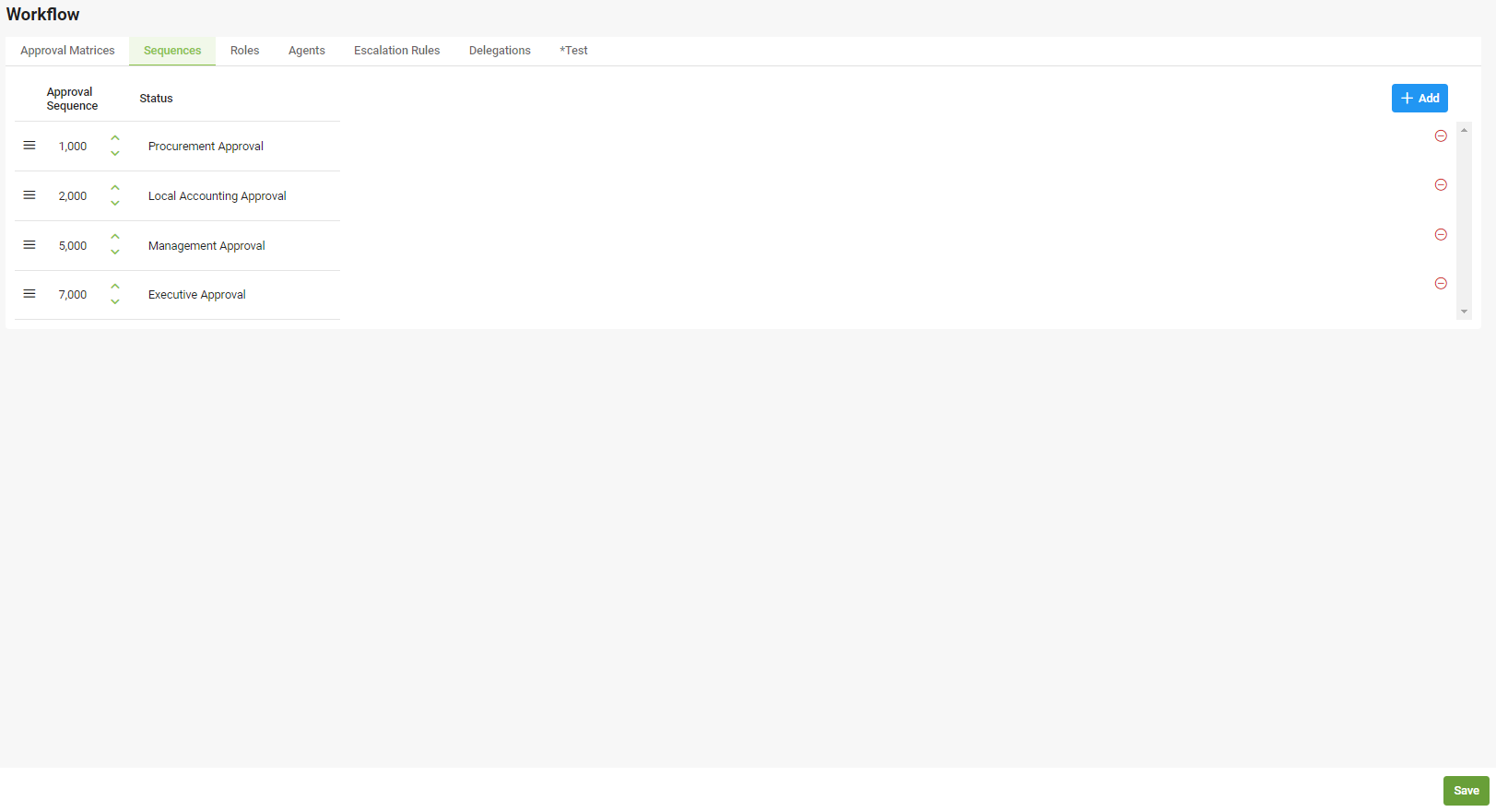
The Sequence determines the order in which the Initiative is to proceed to the various Roles as determined by the Approval Matrix. The sequence needs to be numeric, and the approval flow will then follow that numeric sequence from the smallest to the largest number.
For example, if the CIO and CFO approvals are required to be in sequence, each role would be assigned a unique sequence number, corresponding to that order.
Alternatively, if both approvals can occur in parallel, they would be assigned the same sequence number.
The Sequence Status description identifies the DoA approval level in list reports.
Duplicate Approver Handling
If the same person is assigned to consecutive approval roles in the DoA workflow (i.e., they are the agent for more than one Role across different Sequence numbers), the system will automatically skip the lower-level approval step and route the initiative directly to the highest-sequence approval step assigned to that person.
This mirrors the behaviour of the standard Manager/Sponsor workflow, where a person assigned to both roles is only required to approve once (at the higher level).
Example: If a user is assigned as both Local Approver (Sequence 1) and Middle Level 1 Approver (Sequence 2), the initiative will skip Sequence 1 and go directly to Sequence 2, requiring only one approval from that person.
Roles
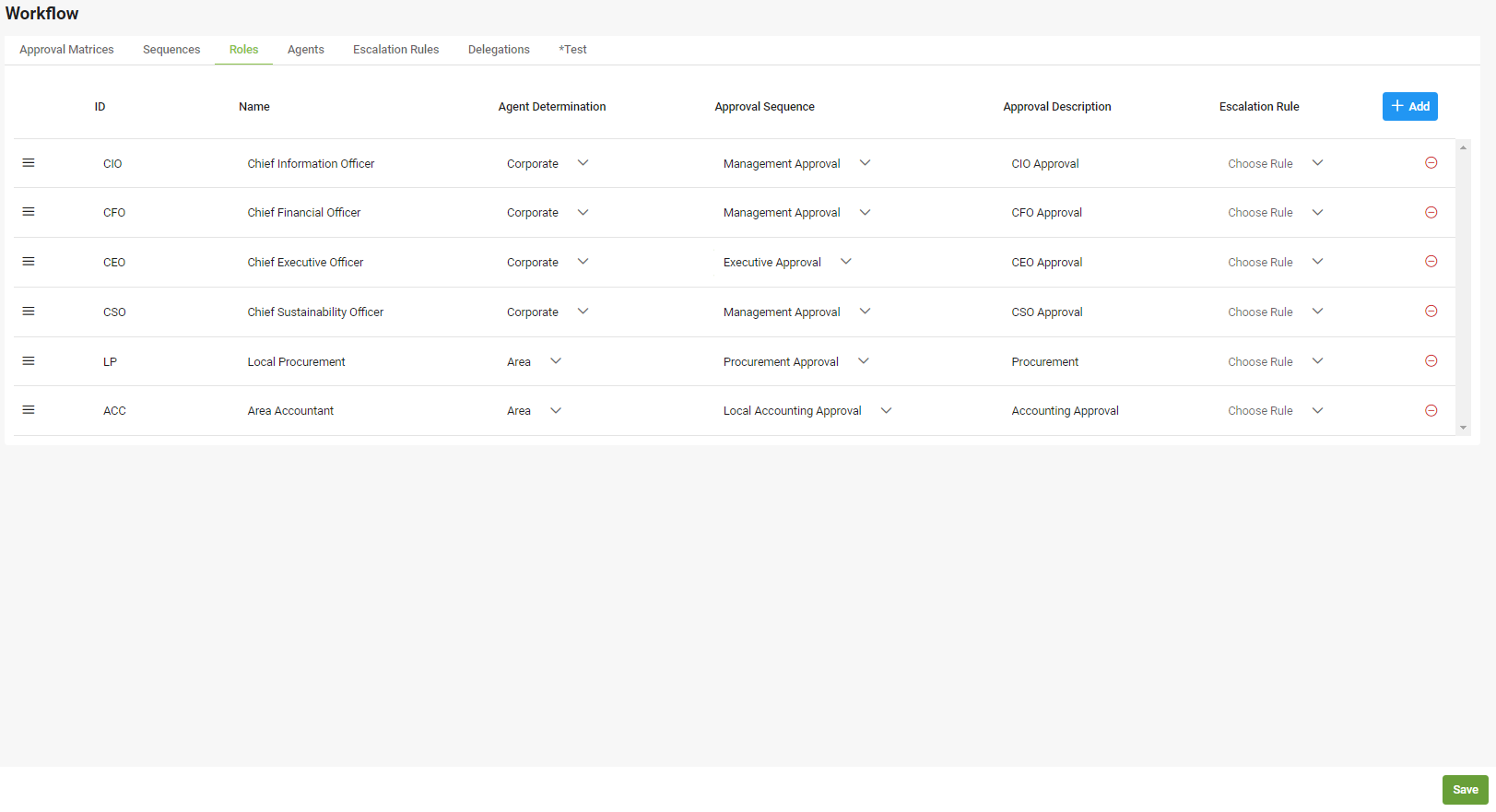
Under Roles we define the different Roles, select how the relevant person is to be derived for the Role and their Sequence in the DoA workflow. The user also defines which Escalation rule, if any, is to be followed.
ID and Name
Any ID and Name can be given to the Role but it is suggested to use the actual Role title for that position to avoid confusion. The Name of the Role given will be the one that persists throughout the workflow configuration process.
Agent Determination
Linking the Role to a specific person is achieved through the Agent Determination. This can be achieved in one of two ways:
Area: Agents can be assigned to Roles in the Org Structure by Area.
Corporate: Central Agents can be assigned to Roles in Workflow configuration.
Approval Sequence
Under Approval Sequence is where the Role is allocated its position in the Approval Sequence. If only one Role is allocated to each Approval Sequence then the workflow will proceed consecutively. If more than one Role is assigned the same Approval Sequence then, at that point in the workflow, the approvals will proceed in parallel.
Approval Description
The Approval Description will describe the status at which the Initiative is at when with that person as it will appear on the Initiative and the list of Initiatives. The description will allow participants to view the list of initiatives and determine which role it is with at a glance.
Escalation Rule
The Escalation Rules are configured under the Escalation Rule Tab and are then allocated to the Role here.
Corporate Agents
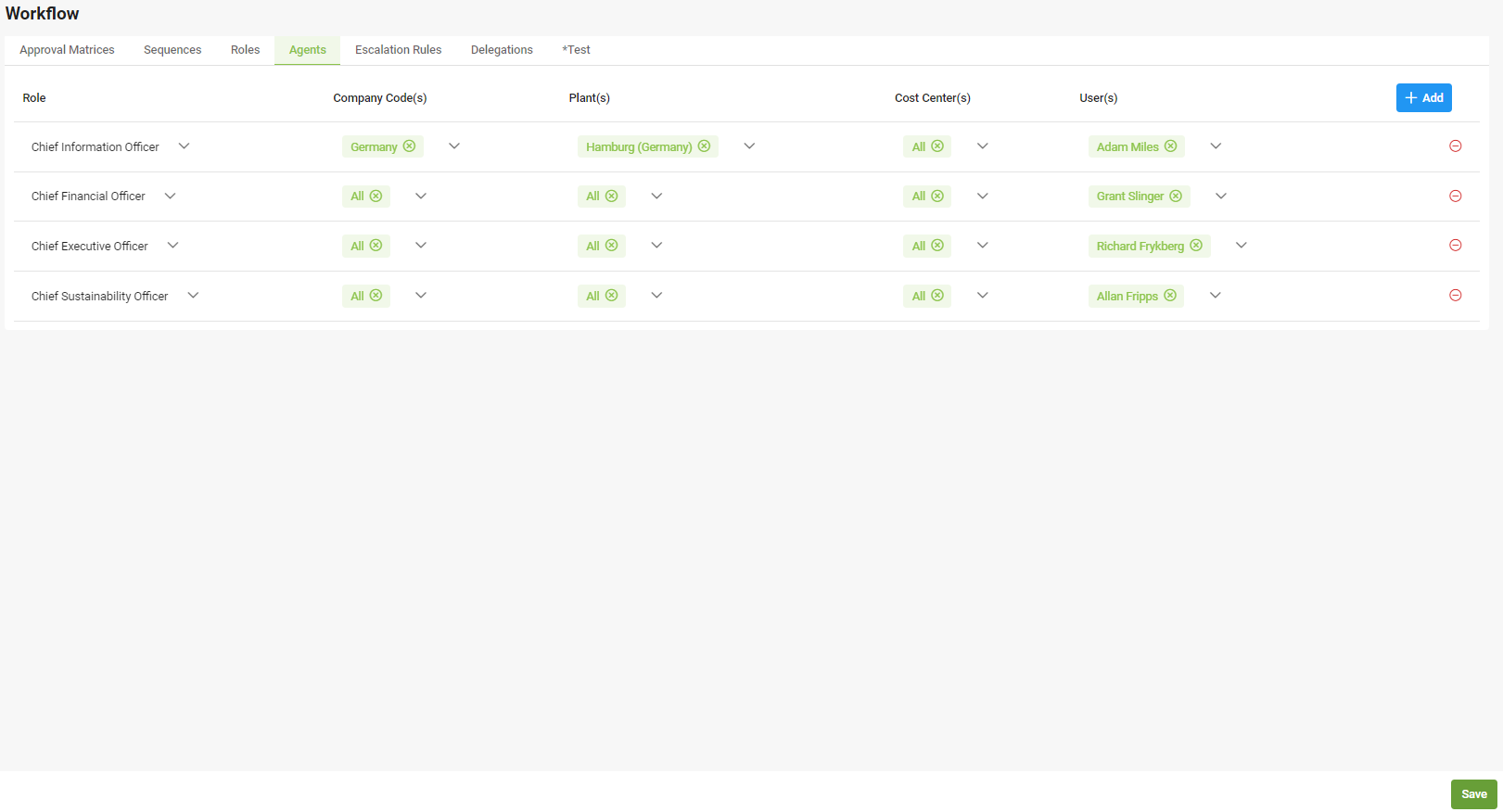
The Agents is where all Corporate Agents are assigned to unique higher-level Roles. For example, the Chief Executive Officer is typically assigned as a Corporate Agent. Operational Roles (e.g. Site Accountant) would be assigned to Agents at an Area level with the Organizational Structure.
Role
Any Role created which has Corporate selected under Agent Determination will be available to be configured under Agents. By clicking on the drop-down menu, the user can select the Role they wish to configure. The same Role can be configured as many times as the User wants to allow for different authorizations in the organization.
Company Code(s)
If All is selected, then the Agent will cover the whole organization. If a specific Company or multiple Companies are selected, then the Agent will be derived only for the specified Company or Companies.
Plant(s)
If All is selected, then the Agent will cover the whole organization. If a specific Plant or multiple Plants are selected, then the Agent will be derived only for the specified Plant or Plants.
Cost Center(s)
If All is selected, then the Agent will cover the whole organization. If a specific Cost Center or multiple Cost Centers are selected, then the Agent will be derived only for the specified Cost Center or Cost Centers.
User(s)
This is assigned Agent for the Role and Company code/Plant/Cost Center permutation. One or more person is assigned by selecting them from the drop-down list of Stratex users.
If more than one user is assigned to a Role, then any one of them can Approve. If both individuals are required to approve, they should be assigned unique roles and assigned to the same Sequence.
Agent Assignment is based on Stratex User. With Single Sign-On activated, Stratex Users are automatically provisioned on initial access to the system. If a user has not yet accessed the environment, they can be manually (and provisionally) added in User Maintenance and assigned to a Role.
If an Agent is not selectable, add the person under User Administration.
Escalation Rules

The user can configure as many Escalation Rules as they like but each should have a different ID to facilitate identification when selecting.
Auto Approve
All Escalation rules have the option to Auto Approve or not. If ticked, then the Initiative will Auto Approve for that person (and will be noted in the audit log that it was auto approved on their behalf) after the number of days specified.
The reminder days specified applies after the previous reminder. e.g. In the example above, the Reminder 3 will be sent after 5 days (1 day+2 days+2 days) after the approval was initially requested. In the example above it will Auto Approve after 6 days.
Reminders
The user can also decide if they want reminders sent to the person if they have not approved the Initiative. They can do this by entering the number of days for each reminder with the possibility of sending up to three reminders. The total number of days for the reminders can’t exceed the number of days under Approve After if Auto Approve is selected.
Delegations

It is possible to set up a Delegate for any Delegator by selecting the respective people from the drop-down menus under each field. A From Date and a To Date needs to be selected and an optional comment can be included if desired.
If a Delegate is selected, during the from and to date they will, along with the Delegator appear in the workflow in the Role the Delegator holds. Both the Delegator and the Delegate will be able to view and action the Initiative with either able to approve the Initiative for it to proceed.
*Test
A Test Harness is included for testing the user's configuration to ensure it results in the DoA workflow they are anticipating. Select the Inputs and check the Output corresponds to what is expected.