Scoring Model Overview
Scoring models define which dimensions of an initiative are to be assessed at each stage of its evolution, what scoring matrices are to be applied in the evaluation, and how these dimensional scores are weighted to produce a summary score.
Scoring Models list page
The Scoring Models list pages acts as list of all scoring models in the system.
To access the Scoring Models list page, click on the Scoring Models button under the Configuration section of the left-hand navigation bar.
On opening, you will note the Names of the scoring models on the left along with a number of action tabs on the right and as can be seen in the screenshot below.
To Add a Model, click the “Add” button.
To Edit a Model, click the “Edit” button.
To Copy a Model, click the “Copy” button.
To Delete a Model, click the delete icon situated to the far right of each item.
To Save click the Save button.
Editing or Creating a Scoring Model
An existing scoring model can be edited by either clicking the name of a scoring model or the edit button on the Scoring Model list page.
The Scoring Matrix edit page consists of the following:
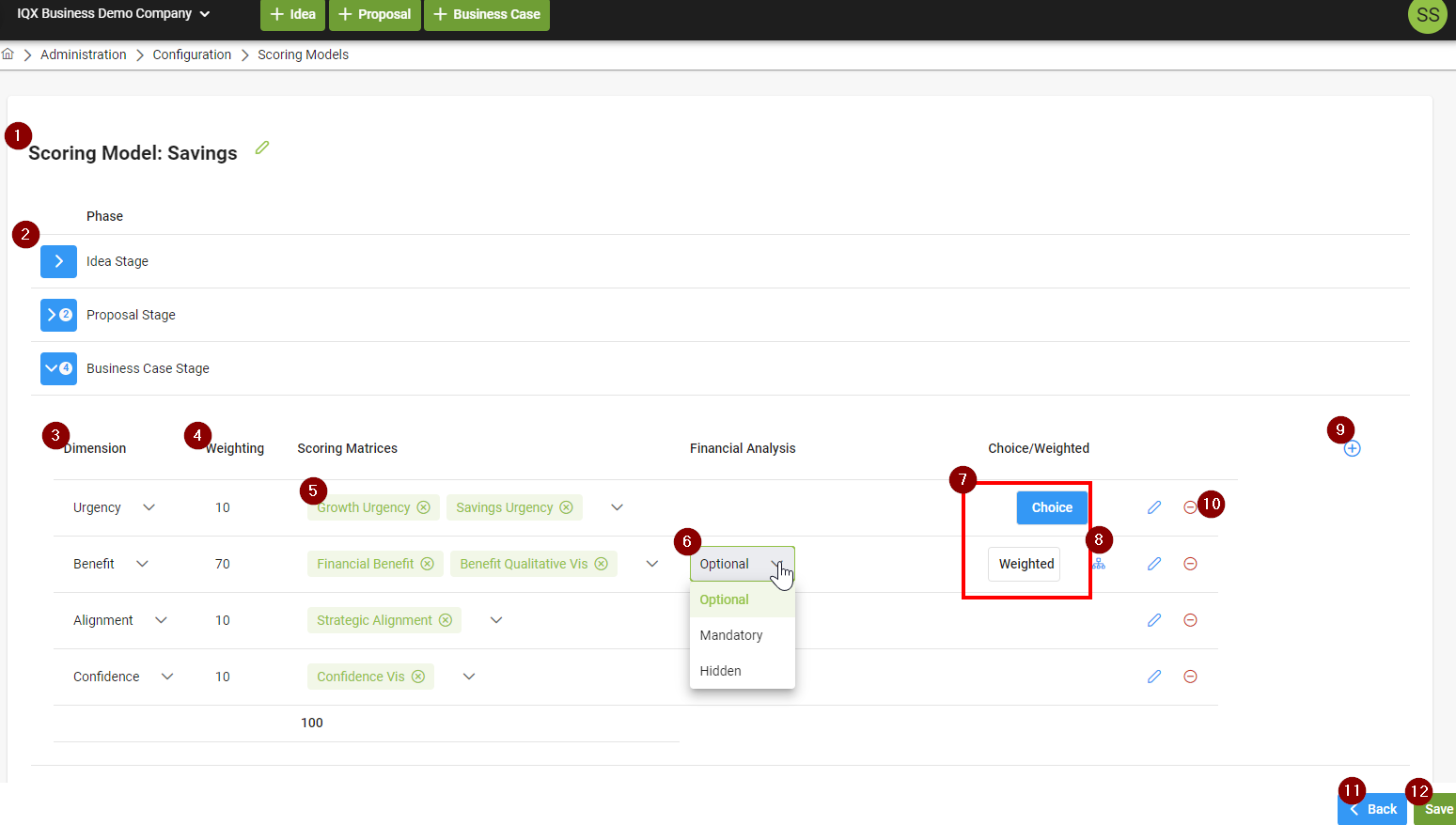
Name - Used to identify the scoring matrix.
Can be edited by clicking the edit icon.
Expand/Collapse Initiative Stage- Used to show/hide initiative stage specific scoring model configuration.
Dimension - The scoring dimension related to the initiative stage.
Selection options are Urgency, Benefit, Confidence, Alignment.
Only one of each dimension type is allowed per initiative stage.
Dimension Weighting - Edit the weighting of each dimension based on importance to overall scoring model.
Total weighting of all dimensions must equal 100.
Scoring Matrices - Select scoring matrices to be used with the scoring model.
Clicking the drop-down list will allow for selection of one or more matrices related to the dimension.
Can search on matrices for easy access.
Financial Analysis - For the Benefit dimension, select a financial analysis option from the drop-down box.
Optional - a financial analysis can be added.
Mandatory - a financial analysis must be added.
Hidden - a financial analysis cannot be added.
Matrix Selection Type - Toggle between choice or weighted selection of matrices for a dimension
Choice - If Choice, end users will have to select one of the scoring matrices for the dimension to fill in.
Weighted - If Weighted, end users will have to fill in all matrices related to the dimension.
Weighting matrices - Used to change the weighting of scoring matrices in a dimension to determine their relative importance to each other. The total must always add up to 100.
Add Dimension - Create an additional dimension row related to the initiative stage.
Delete Scoring Matrix - Remove the scoring matrix related to the dimension.
Delete Dimension - Used to delete a dimension related to an initiative stage.
Save button - Save changes made.
Back button - Navigate back to the Scoring Model list page.
Saving Changes and Impact on Existing Initiatives
When changes are made to a scoring model and saved, all future Initiatives which utilize that model will reflect the amended model.
All existing Initiatives which utilize the model will not be affected and will continue to reflect the model and configured matrices as per the pre-modified model.
Should the User wish to update these earlier Initiatives they will need to rescore each one individually by utilizing the Rescore option available to them on the initiative.
Setting dimensions as mandatory
Admins can set dimensions as mandatory, requiring users to have a score greater than 0 for the particular dimension in order to submit the initiative to the next step. A dimension can be made mandatory by accessing the scoring model and enabling the checkbox for that dimension.