Overview of Scoring Matrices Concept
The goal of a scoring matrix is to assist with the prioritization of initiatives by producing a relative ‘score’ for each dimension of evaluation.
Stratex has six Model Types which can be configured for initiative evaluation and scoring:
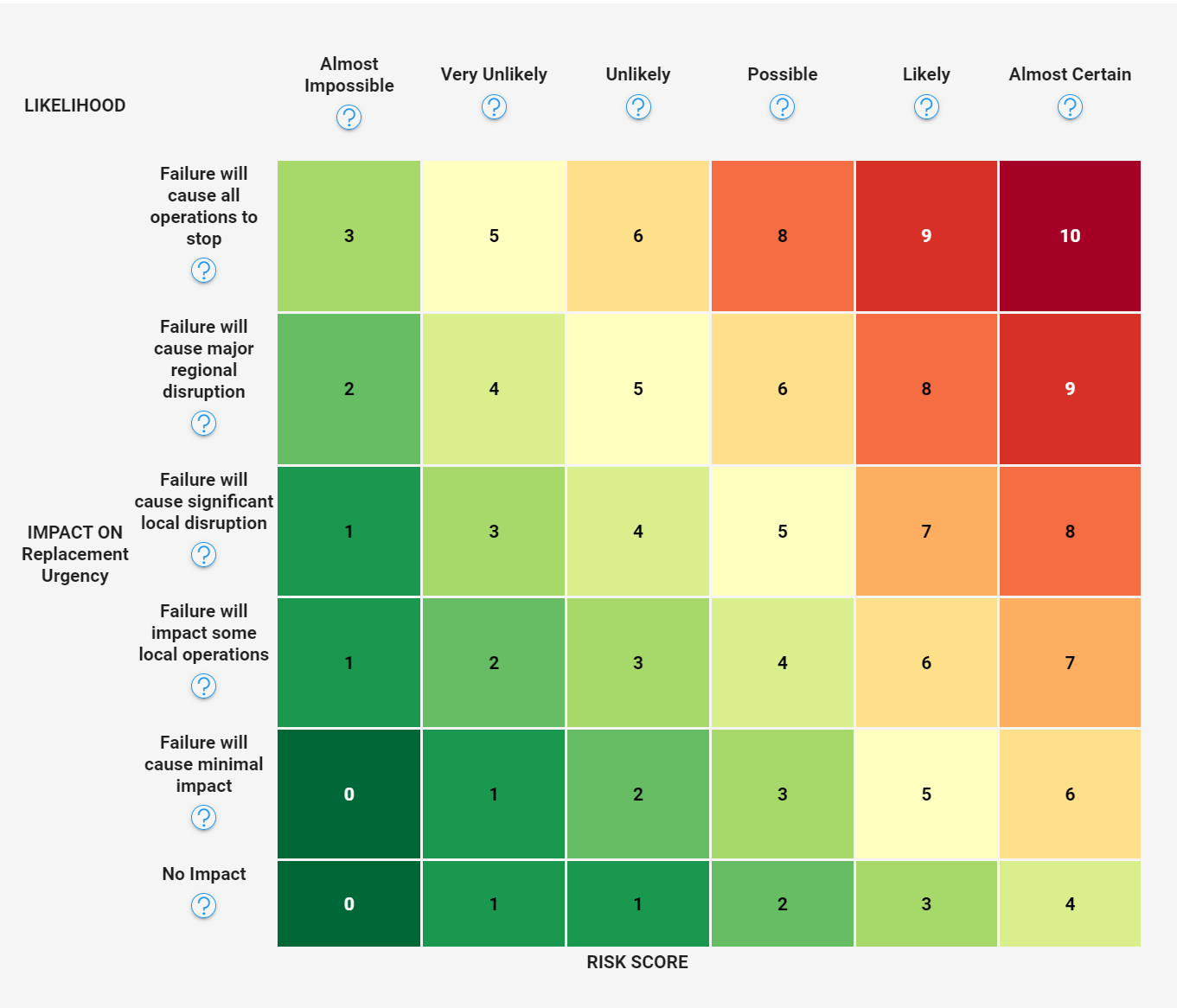
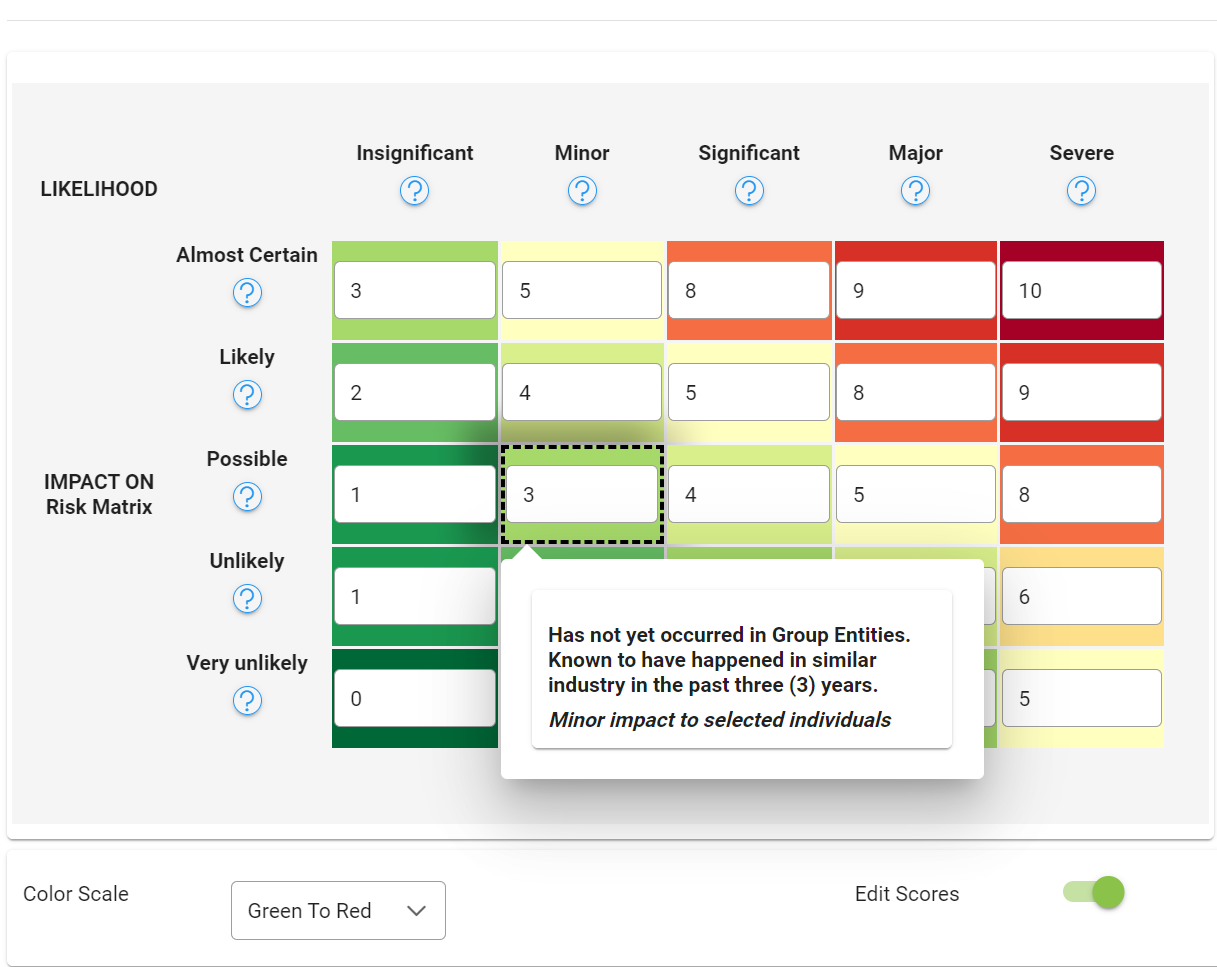
Heatmap Model Type - A defined set of Evaluations against a defined set of Criteria and allocates a unique score to each intersection with the user then selecting a single intersection on the Heatmap to generate the score. Risk assessments are typically expressed via heatmap model type.
NOTE: The axis points (Likelihood and Impact On in the below example) can be configured for each different heat map
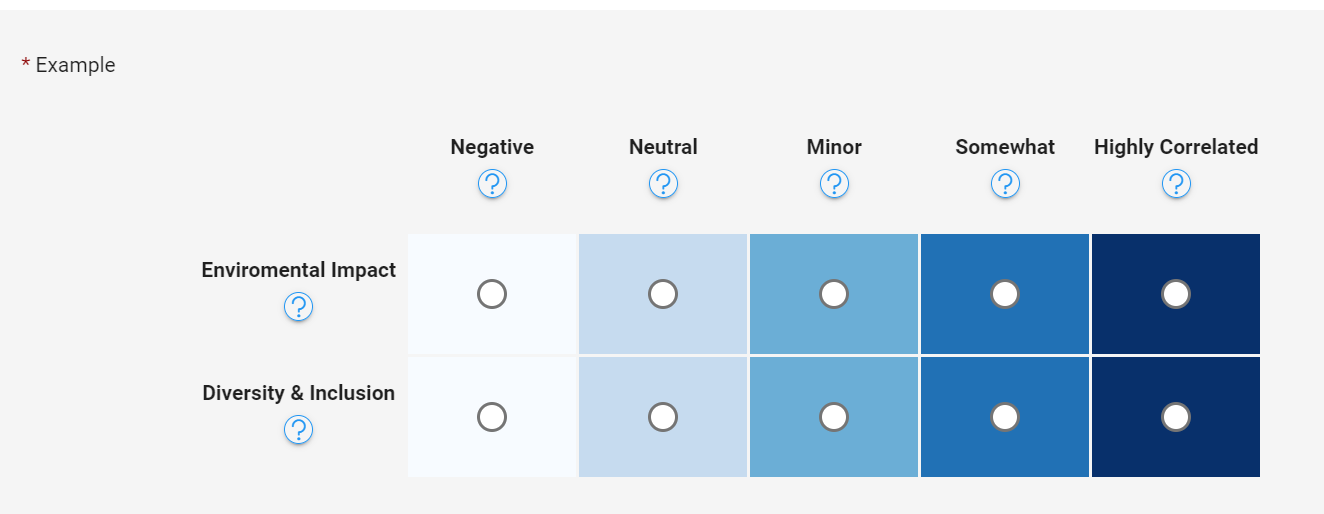
Matrix Model Type - Similar to a Heatmap other than an intersection is generated for each Criteria with each Criteria being weighted. Based upon the intersections selected for each Criteria and the Criteria’s weighting a composite score out of 10 is generated.
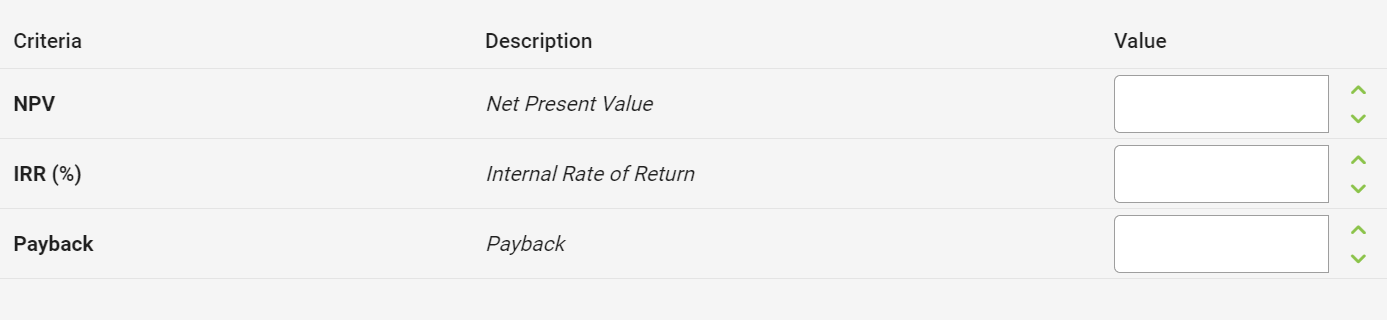
Metric Model Type - Only has Criteria against which it is scored with each Criteria having From / Too ranges for the Criteria and each range getting a score. The Criteria are weighted to generate a final score out of 10.
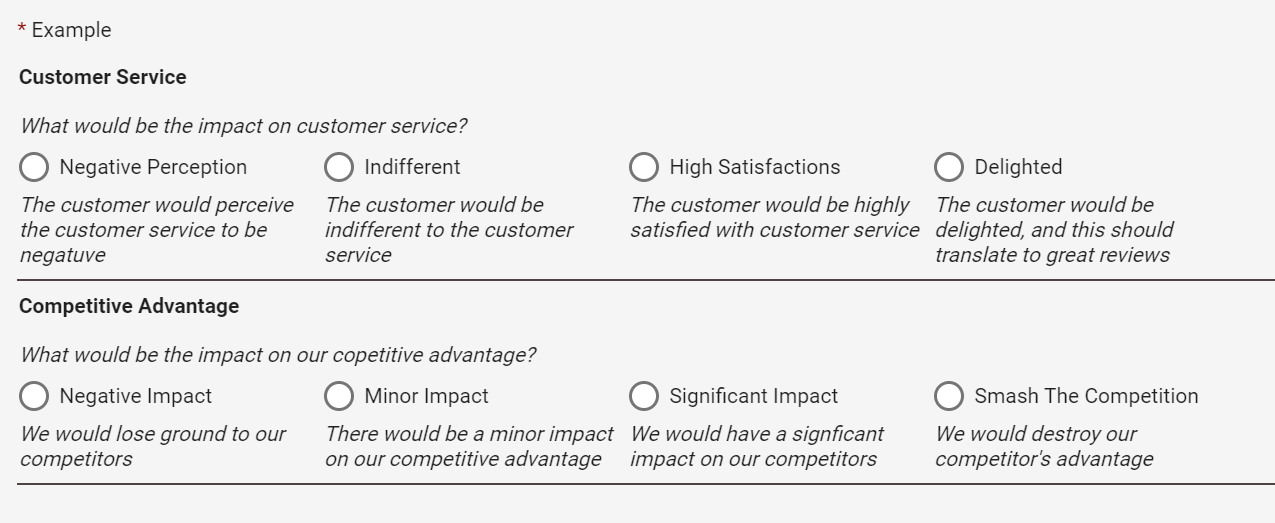
Multi-Choice Model Type - Uses Evaluations and Criteria but it is possible to lock the Evaluations so they are all the same for the different Criteria. If not locked, then they can be configured differently for each Criteria. Even if locked, the Evaluations can be scored differently for each Criteria. The user is required to select one choice for each Criteria and based upon the scoring of the Evaluation and the weighting of the Criteria a final score out of 10 is achieved.
Slider Model Type - Simplified version of a Multi-Choice that allows the user to set the Criteria and the minimum and maximum values of a range. User then slides the toggle to achieve the desired score.

Text Model Type - Similar to a Metric model however the fields are text. The most likely use case for this matrix would be a single Criteria and it would be inserted after a Multi Choice Matrix to allow a narrative explanation for the result.
Scoring Matrices list page
The Scoring Matrices list pages acts as list of all scoring matrices in the system and shows their name, dimension and model type.
To access the Scoring Matrices list page, click on Scoring Matrices under the Configuration section of the left-hand navigation bar.
Now that you are viewing the Scoring Matrices page you will note the following across the top:
Name
The name given to the scoring matrix when it was created.
Dimension
The dimension selected for the scoring matrix. The standard evaluation dimensions are Urgency, Benefit, Confidence and Strategic alignment.
Model type
The type of model associated with the scoring matrix.
Import
By clicking on the Import button, you can upload a previously exported scoring matrix for use.
Add
By clicking on the + Add button you will create a new blank matrix.
Each Matrix listed has the action Icons associated with it on the right:
Export Matrix
By clicking on it you will Export the matrix as a JSON file which can then be Imported as per the instruction above.
Edit Matrix
Click to edit the matrix.
Copy
This allows you to copy the matrix and save with a different name.
Delete
Clicking this will delete the matrix. Note this does not impact previous usage of the scoring matrix which is stored in the initiative itself.
Adding a Scoring Matrix
Clicking the blue +Add button (top right of screen) on the scoring matrices will create a new Matrix for you to configure.
The pop-up will appear as follows:
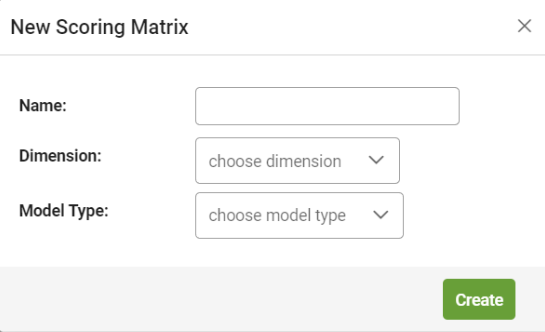
You are free to give the Matrix any name you want but it is recommended to use a name that assists you, and others, in identifying it later.
You select the Dimension you wish to associate with the matrix from the drop-down menu e.g. Urgency.
Likewise, you select the Model Type from the drop-down menu e.g. Heat Map
Once the fields have been filled in and Create is clicked, the Scoring Matrix editing screen will appear.
Editing a Matrix
A newly created or an existing scoring matrix can be edited by either clicking the name of a scoring matrix or the edit pencil on the Scoring Matrix list page.
Depending on the Model Type selected, you will be able to see all, or some of, the following:
In the top row, below the name of the Matrix you will note the following:
Dimension
This will be populated from the original setup when created but can be changed if desired. Defines which scoring dimension the matrix can be applied to when editing a scoring model. Selection options are: Urgency, Benefit, Confidence, Alignment.
Model Type
Likewise, populated from the original setup but can be changed. Defines the user experience when filling in the matrix. Selection options are: Heatmap, Matrix, Metric, Multi-Choice, Slider, Text
Evaluations are the selectable answers for each assessment criterion. For example these can be “Yes” or “No”.
Fixed Evaluations
Can be enabled/disabled for and Multi-Choice model types. If Fixed evaluations are enabled, all Criteria will have the same available answers. If not enabled, the evaluations can be defined for each criterion.
Fixed evaluations is defaulted to on for Heatmap and Matrix model type. Metric and Slider model types do not support fixed evaluations.
Number of Evaluations
All Criteria in a matrix or heatmap will have the number of Evaluations (or columns) as specified.
On the left of the screen you have the following configurations:
Evaluations
Can be expanded/collapsed to show/hide the matrix evaluations. When editing Evaluations for a scoring matrix, a Code and Description for each Evaluation is needed. The Code represents the identifying short text which appears on the matrix, while the Description provides further details behind the  on the matrix.
Criteria are the various aspects for consideration when assessing an initiative. Each criterion is evaluated with either qualitative evaluations (eg “Yes or “No”) or a quantitative inputs (e.g. Net Present Value).
Criteria
Can be expanded/collapsed to show/hide the matrix criteria.
Add, Copy, Delete icons
In the top right of the screen you will see icons to Add, Copy and Delete Criteria.
Configuring Heatmap Scoring Matrices
Heatmaps return a single score corresponding to the intersection between the Criteria and Evaluation most relevant to the Initiative which is selected by the User.
Evaluations - In heatmap, the evaluations are columns and apply to all criteria.
Criteria - Give a short description of each criteria.
Description - Give additional details about the criteria which will assist the user to understand how the Criteria should be evaluated.
Expand/Collapse Criteria - Used to show/hide criteria specific evaluations and scoring.
Evaluations Score - The editable score associated with a criteria's specific evaluation. Typically scores between 0 and 10 are used. It is however possible to use scores well in excess of this or negative to achieve a desired overall result. For example, if the Evaluation is configured as “Will be detrimental to the outcome” then you may wish to give it a negative score. e.g. -5. If it is so negative it should cause the Initiative to achieve a Zero for that Dimension regardless of the other Criteria, then you would score it -100 etc. The same applies for positive in that you can give the top score a +100 in which case the Initiative would most likely score a 10 for that Dimension regardless of what the other Criteria are scored as. If you want a score in a criteria to achieve a neutral score, then you should give it a 5.
Configuring Matrix Scoring Matrices
Matrix-type scoring matrices generate a score based upon the scores achieved for the individual Criteria which are then weighted to give a net score out of 10.
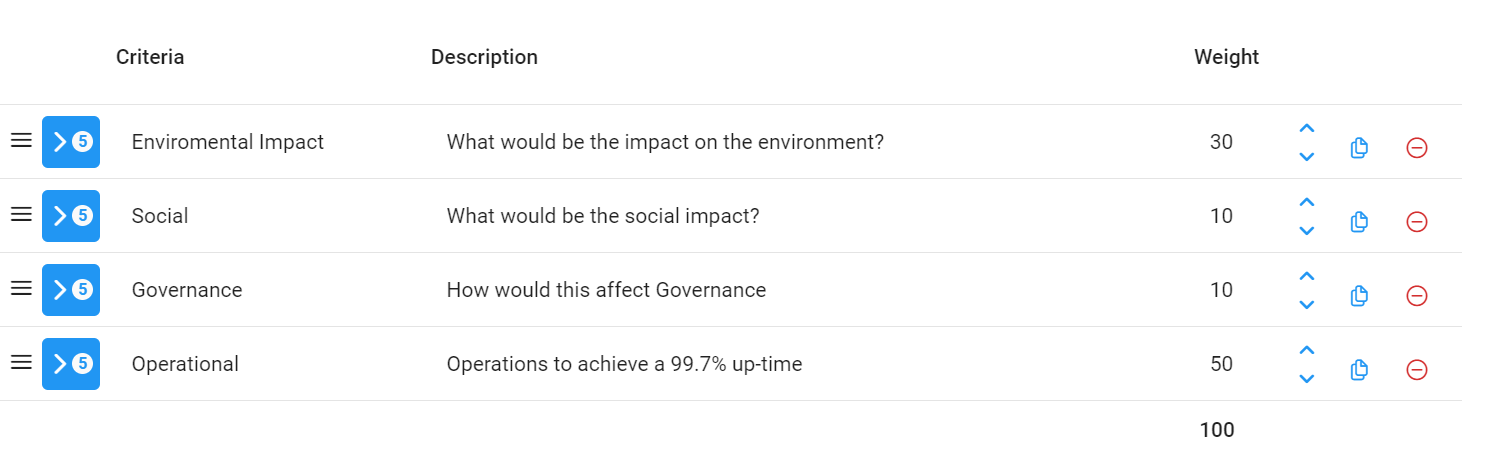
Configured in a very similar way to a Heatmap above. It differs in having a score generated for each Criteria and allowing for the Criteria to be weighted differently to recognize their importance. The weighting must always total to 100%.
When looking at the Criteria screen, you will note that, where the Heat Map only has Criteria and Description, the Matrix also has Weighting. This weighting allows you to assign more importance to one Criteria than to another. e.g. in the screenshot below, Operational risk is weighted more heavily than Social.
Configuring Multi-Choice Scoring Matrices
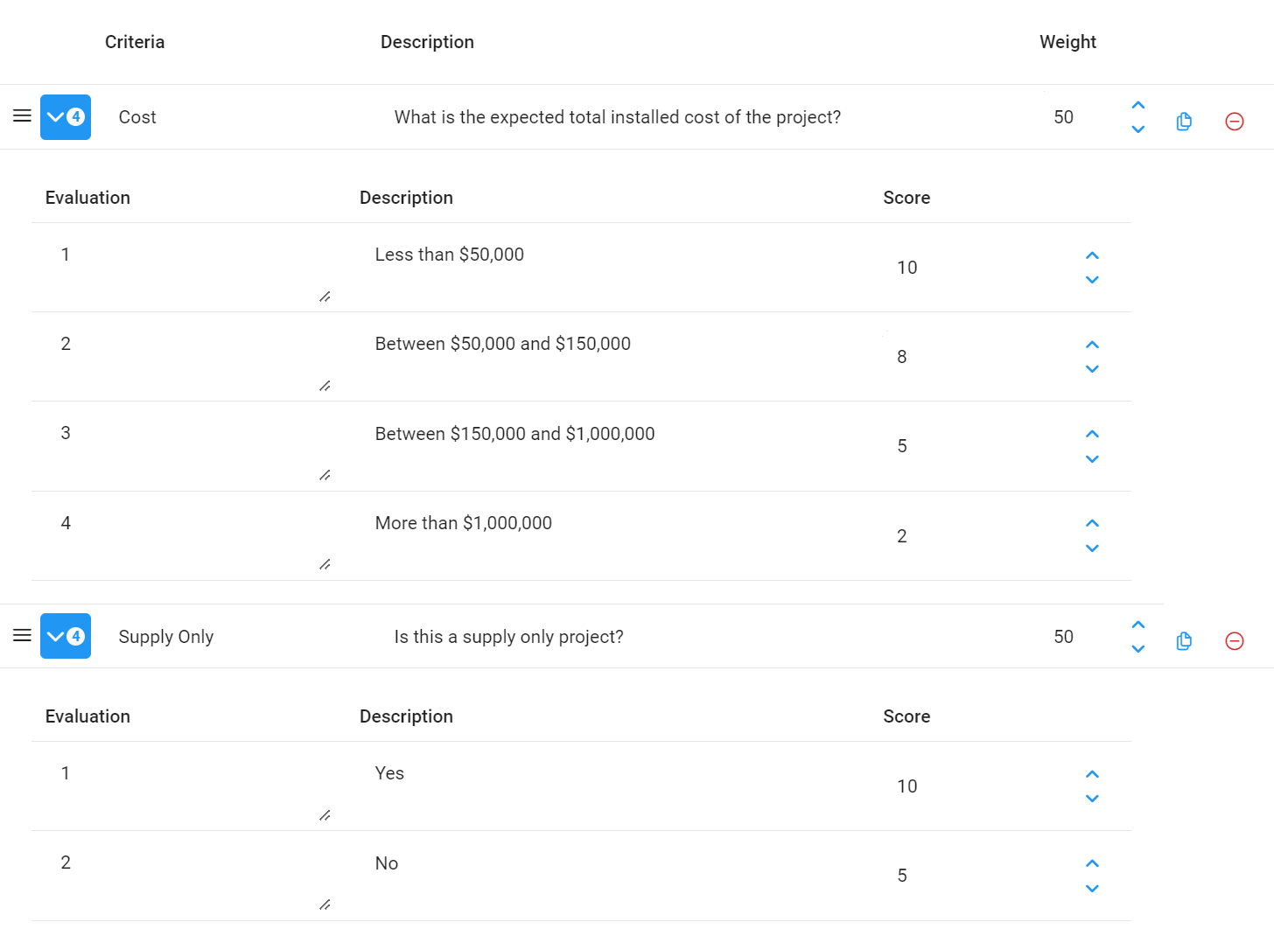
As with the Matrix, it gives a score based upon the scores achieved for the individual Criteria which are then weighted to give a net score out of 10.
However, with Multi-choice scoring models, there is an option to have varying Evaluations per Criteria.
It has a score generated for each Criterion and allows for each Criterion to be weighted differently to recognize their importance. The weighting must always total to 100%.
Configuring Metric Scoring Matrices
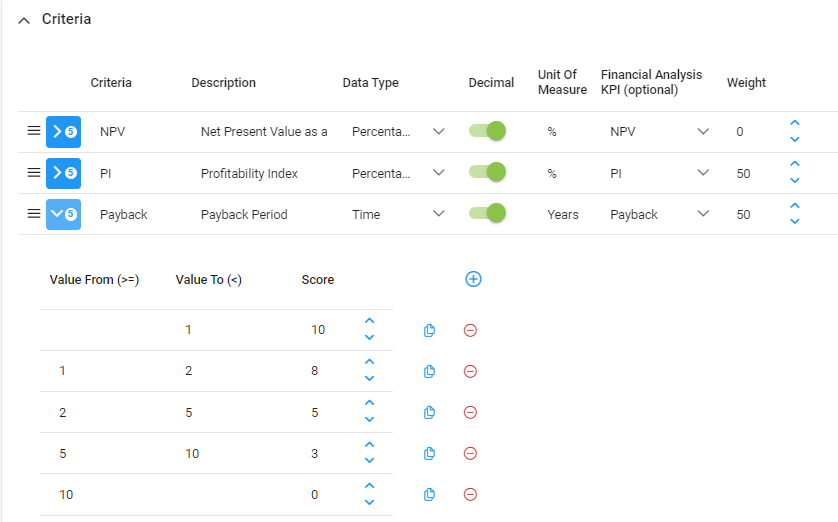
Metric Scoring Matrices allow for direct entry of quantitative assessments. Each Criteria is assigned a Data Type (e.g. amount), Decimal (e.g. Yes), Unit of Measure (e.g. USD) and Financial Analysis KPI (optional) fields.
Data Type - Select the Data Type from the drop-down menu which matches with the Criteria e.g. Payback would be Numeric.
Decimal - This toggle is either On = green or Off = grey. If on, when the user is entering a result, then a whole number as well as decimals can be entered e.g. 2.75. If off, then only whole numbers can be entered e.g. 3
Unit of Measure - You can enter whatever you want but it is recommended to enter a UOM which relates to the Criteria. In the example above of Payback it would be Years.
Financial Analysis KPI (optional) - If left blank then, when the matrix is rendered for the User, they will have to manually enter the number. If a KPI is selected from the drop-down menu AND a Financial Analysis is attached to the Initiative which has that KPI, then it will automatically populate the matrix when rendered.
Expand/Collapse Criteria - Used to show/hide criteria specific scoring and scoring range.
Value From - This defines the starting value (Equal to or greater than) in the specific scoring line.
Value To - This defines the final value (Less than) in the specific scoring line.
In the screenshot below, if the value is 2 then the score will be 5. Although there is a 2 in the scoring line generating an 8, as it is the Value To, to achieve an 8 the value would have to be Less than 2 and not be equal to 2.
Score - The scores are what your Organization considers relevant for each scoring line. Typically, numbers between 0 and 10 are used but you are not limited to this with a negative score allowed.
Configuring Text Scoring Matrices
A Text Matrix is similar to a Matrix which does allow Text to be entered but does not allow scoring.
This Matrix is used to ask standardized questions and gives the use the ability to add text in response.
Configuring Slider Scoring Matrices
The Slider is the simplest matrix to score in that the user merely slides the selection toggle to the point they feel is appropriate. It is useful in the early stages, e.g. Idea, for the User to give a quick score for the Dimension, often Urgency. As the Initiative matures, Sliders are normally replaced by more sophisticated matrices such as Multi Choice etc.
It is configured similarly to a Multi Choice other than you must configure the minimum and maximum extent of the range. As an example, it could be from -5 to +5 or from 0 to 10 etc. Whatever scoring you use, Stratex will always convert it to a score out of 10.
Saving Changes and Impact on Existing Initiatives
When changes are made to a scoring matrix and saved, all future Initiatives which utilize that matrix will reflect the amended matrix.
All existing Initiatives which utilize the matrix will not be affected and will continue to reflect the matrix and score as per the pre-modified Matrix.
Should the User wish to update these earlier Initiatives they will need to rescore each one individually by utilizing the Rescore option available to them. When using the rescore function, this will re-set ALL matrices, even if they have not been changed, and will thus require ALL matrices to be re-scored, not just the one that has been changed.