Custom Field Catalog
The Custom Field Catalog is where the different Custom Fields are defined. This means that it is here that the Administrator will create the custom fields, but they then need to be configured for use under Screen Variants below.
Depending on the purpose for which the custom field is to be used, the configuration is very important otherwise it will not render as desired for the user.

Field ID - This is the system code and will not appear anywhere for the user but must be entered and be unique for this functionality to work.
Label - This corresponds to what will be rendered when the custom field is rendered for the user and describe the purpose of the custom field.
Type - As the name implies; the type will determine the behavior of the field.
String - A sequence of characters
Integer - A whole number (No fractions)
Decimal - A number with decimal point
Date - Renders a date selection for the user
Date & Time - Renders a date selection for the user
Boolean - Renders the ability to select the description or not.
Currency - The field will render with two sections. When the user selects the currency, it will automatically render a currency symbol in the input box where the amount is entered.
UI Control
Input - Will accept any characters entered
Select - Will render a drop-down list of options configured to select from
Checkbox - Will render as check boxes for selection
Radio - Will render as round selection options
Textarea - Will render as a text box without rich text editing
Rich Text Editor - Will render a text box with rich text editing
Date-Month - Will render a date selection pop-up. This selection will be limited to Month and Year selection.
Date-Day - Will render a date selection pop-up. This selection will allow users to select the Day, Month and Year.
For a custom field to have a date in the format of YYYY-MM-DD please ensure the type of the custom field is Date & Time and with a UI control of Date-Day.
Size: If the UI control is a Textarea, Input, or Rich Text Editor, admins can configure the size of the custom field. The available size options are Small, Medium, Large, and Full.
Lookup - This pop-up will only appear for the Administrator configuring the custom field under certain Type / Lookup combinations and if Code and description is selected under lookup. If all of this is done then the following pop-up will appear when the blue gear is selected next to the custom field being configured.
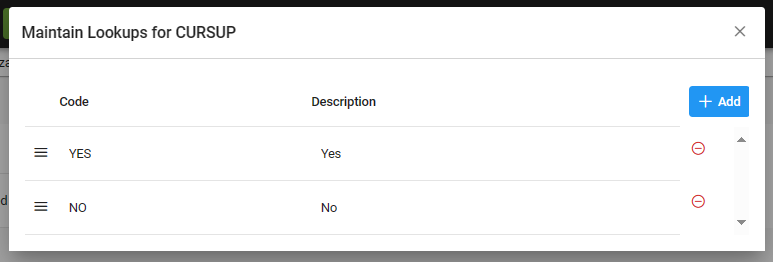
Code - This is the system code and will not appear anywhere for the user but must be configured.
Description - This corresponds to what will be rendered when the custom field is rendered for the user and will give the options to select.
Custom fields created here may be displayed as columns in the Initiative Analytics tab and can be selected from the Additional Information section, provided they have been used in a screen variant.
Reporting of dates are localised. i.e for en-AU the date format is dd/mm/yyyy and for en-US the date format is mm/dd/yyyy.