Accessing Configuration Data
To access the Configuration Data page, click on the Configuration Data button under the Configuration section of the left hand navigation bar.
The Configuration Data page consists of Global Configuration in the header, and detailed configuration in individual sections separated by tabs:
Investment Reasons
Investment Types
Depreciation Classes
Investment Categories
Initiative Classifications
Currencies
Companies
Segments
Financing
Estimates
Financial Classifications
Progress
Attachment Types
Settings
Global Configuration
The global configuration of Stratex Online identifies the entity, default currency, default locale, group currency and group fiscal year start.
Name - The entity ‘group’ name. Stratex Online support a single group within a single subscription instance. The name of this enterprise ‘group’ is defined here. Subordinate business units are defined within the organizational structure. Budgeting within Stratex Online is ultimately controlled at this group level.
Default Currency - all amount fields will be defaulted to be entered in this currency unless an alternative local currency has been defined.
Default Locale - The language, date and currency formatting are provided by the default locale. Currently, the following languages are supported: English, French, Spanish, and German. NOTE: Users can individually change their own language using the flag icon.
Group Currency - For group controlling purposes, all Local currencies are converted to the Group currency for management and analysis.
Fiscal Year - the timing of the groups fiscal year’s (external reporting year) commencement month. For example, in Australia, the normal Fiscal Year 2025 runs from July 2024 to June 2025.
Investment Reasons
Investment reasons are a mandatory classification of every initiative within Stratex and are used for analysis, budgeting, scoring and workflow definition.
The key attributes of Investment Reasons are:
Code - Shorthand way to recognize an investment reason.
Description - Used to identify the investment reason.
Sub-Categories - (optional) Can be assigned to an investment reason. Categories appear grouped within the initiative when selecting investment categories, and sub-categories can be defined in the Investment Categories tab.
Attachment Variant - (optional) The attachment variant associated with the investment reason determines what attachments are required to be attached and at what stage.
Scoring Model - (recommended) The scoring model associated with the investment reason drives the scoring dimensions and matrices used for evaluating an initiative.
Financial Analysis Templates - (optional) The default template proposed for a new financial analysis when the investment reason is selected for an initiative.
Investment Types
Investment Types identify the nature of investment at a high-level for analysis purposes and are a mandatory attribute of every initiative. Investment types can be used to drive delegation of authority workflow approval rules. They tend to be broad in nature e.g. Land & Buildings, Plant & Equipment, Intangible Assets. Investment Types can also be used to identify Opex initiatives such as “New Position”.
The key attributes of Investment Types are:
Code - unique short-ID of an investment type that may be used to map back to asset-under-construction categorizations in the accounting system.
Description - Used to identify the investment type when creating or reviewing initiatives. e.g. Land & Buildings.
Depreciation Classes
Depreciation classes are used when creating a financial analysis. They are more granular than Investment Types and are used as the basis for useful life and depreciation method calculation.
The key attributes of Depreciation Classes are:
Code - unique short-ID of an investment class that may be used to map back the asset classes in the fixed assed accounting system.
Description - Use familiar corporate terminology as this will be used by the user to identify the investment class.
Useful life - Use the generic corporate recognized useful life as it will used in financial analysis to determine the depreciation. It is entered in years.
Depreciation method - Select from the drop-down. Used to calculate depreciation in a financial analysis.
Investment Categories
Investment Categories are an optional further categorization of initiatives. Investment categories are optional, and multiple categories can be assigned to an individual initiative. Investment Categories can be used to drive workflow processes. Examples may include key strategies (e.g. Greenhouse Gas Reduction) or programs (e.g. Digital Transformation) or secondary investment reasons (e.g. Staff Wellbeing).
The key attributes of Investment Categories are:
Code - A shorthand identifier for an investment category.
Description - Used to identify the investment category. It should be as descriptive as possible while remaining succinct for ease of selection.
Exclusive - Indicates whether the investment category is exclusive. If selected, no other investment category can be selected alongside it.
Parent Reasons (optional) - Select the parent investment reason. When a parent investment reason is selected, investment categories associated with that parent reason will appear first in the investment category dropdown.
Initiative Classifications
Initiative Classifications combine the likes of investment reasons, investment types, investment categories, and screen variants to allow an initiative to be named, and then exactly classified by an admin user to then be utilized by a standard user.
The key attributes of Investment Categories are:
Name - Name of the classification (can be in code form too if prefered)
Investment Reason(s) - Reason for the investment e.g. growth, replacement etc.
Investment Type(s) - Type of investments include fixed (land and buildings), tangibles, intangibles etc.
Investment Category(s) - Facilitates a further categorization of initiatives e.g. innovation, operational efficiency etc. (more specific than previous investment classifications)
Screen variants - Screen variants are recommended for initiative classifications and are configured to demand certain requirements from corresponding initiatives.
Currencies
Currencies are used when editing an initiative cost and editing monetary fields in a financial analysis. Currency conversion rates are used to convert Local to Group currencies for reporting.
The key attributes of Currencies are:
Currency - Currency code for selection where applicable in the system. Note it is highly recommended to use international currency codes eg USD, EUR, JPY to facilitate integration with external systems.
Group Currency Conversion (default forex rate) - Set the conversion rate between a currency and the group currency. It is very important to note that the rate entered is the amount of Group Currency to purchase 1 Local Currency Unit. If the exchange rate is USD 0.69 = 1 AUD and Group Currency is USD then the rate to enter is 0.69. Transactional currency conversion cross-rates are derived from the group currency exchange rate. For example, if an Australian company makes purchases in NZD, then an NZD translation to group must be maintained. For example:
Maintained | AUD | 0.69 | USD |
|---|---|---|---|
Maintained | NZD | 0.62 | USD |
Derived-Cross Rate | AUD | 1.11 | NZD |
Planning Rates - Plan rates are set on a fiscal year basis. These are assumed rates, and most organizations would not vary these rates. Plan rates are used for planning, budgeting, approval and forecasting.
Actual Rates - Actual rates are set on a monthly basis. All actual costs are translated at Actual Rates. Foreign Exchange rate variances are automatically calculated and shown in group currency as the difference between Actual Cost at Planned Rate and Actual Cost at Actual Rate.
Forecast Rates - Forecast rates are set on a monthly basis. These rates can be used to enter Forecast To Go.
If planning rates are uploaded for subsequent periods, the last one is applied.
The date format used to import/export planning and actual rates is YYYYMM.
If Forecasting Rates are selected and a future period does not have a defined forecast rate, the system will automatically use the forecast rate from the most recent prior period.
Companies
Company codes defined in configuration are assigned to areas in the organization structure and are an important calculation, analysis and integration attribute of an initiative.
The company code drives the default currency, discount and tax rates used in financial analysis calculations. Company codes have associated Plants and Cost Centers which additionally be assigned to areas in the organizational structure.
The key attributes of Company Codes are:
Code - Unique short-ID of a company code that can be used when integrating with accounting systems.
Description - Describes the company code (legal entity or operating unit).
Currency - The default local currency associated with the company code.
Discount Rate - The default discount rate used by NPV calculations in financial analyses.
Tax Rate - The default tax rate used to calculate net present value after tax in financial analyses.
External Id - Secondary external ID supplied during integration as required. Can be used for integrating Stratex Online with investment programs in external systems.
More - Assigned Cost Centers and Plants are identified here.
More - Under the More button you will find where you can configure the Cost Centers and Plants associated with the Company Code.
Cost Centers
Cost Centers are assigned to areas in the organization structure and thereby associated with initiatives. Access authorizations can be controlled by cost center, and corporate role assignments can be specified by cost center.
For example, the Information Technology department may be defined as a Cost Centre. A number of areas in the Organizational Structure may be associated with the Information Technology department (e.g. Support, New Projects, and Infrastructure). When specifying workflow routing rules, there may be a requirement for all Cost Centre Managers to approve initiatives. In Stratex Online, this can be achieved by assigning the Role of Cost Centre Manager to John Smith, the IT manager. When an initiative is submitted for a benefiting area linked to the Information Technology Cost Centre, John Smith will be derived as the approver. Authorization groups can be defined by Cost Centre. This can ensure that the Cost Centre manager can view all initiatives related to areas linked to their Cost Centers.
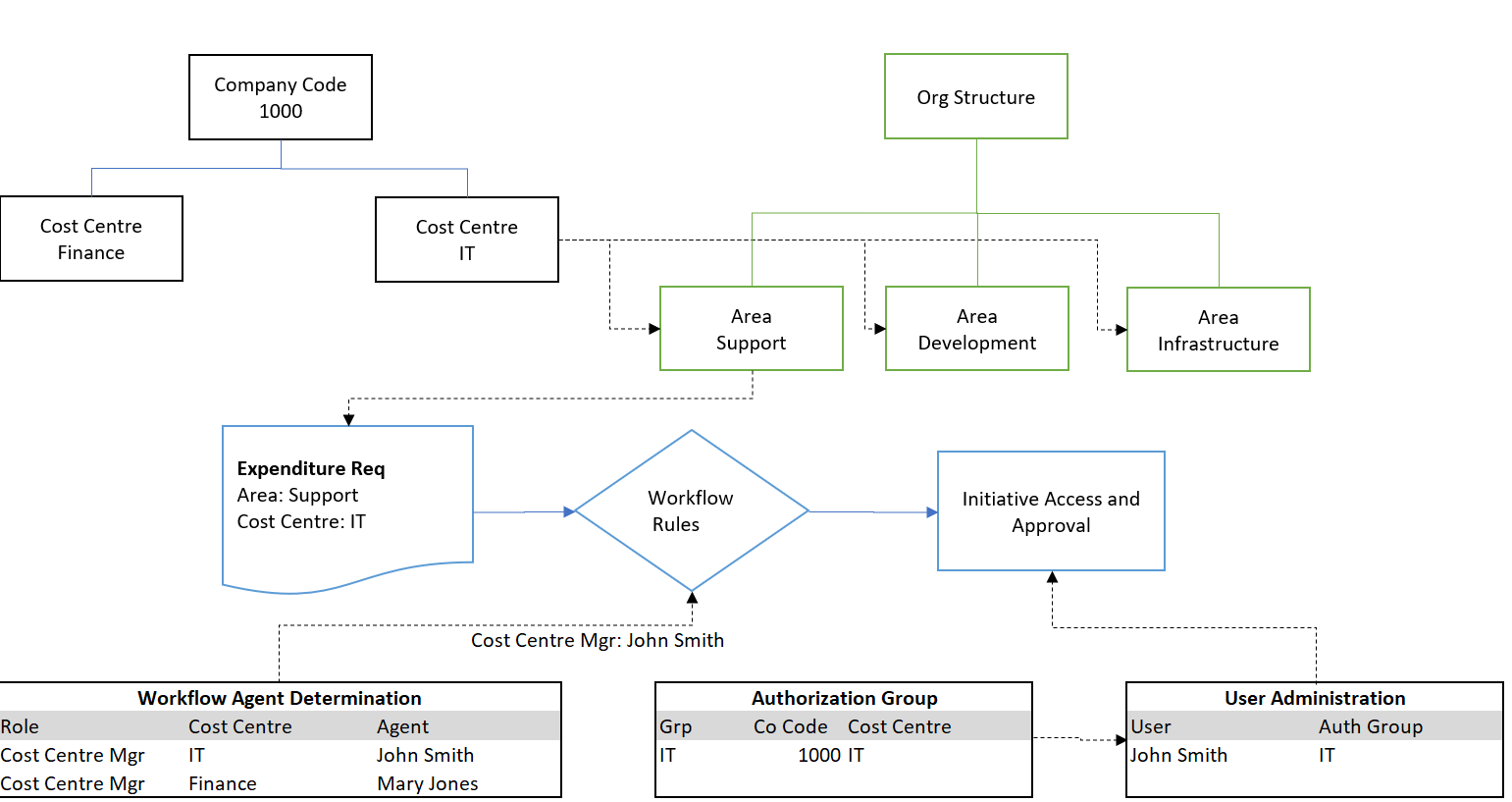
The key attributes of Cost Centers are:
Cost Centre Code - Unique ID of the cost center made available for integration with source systems.
Description - Used to describe the cost center.
Plants
Plants are assigned to areas in the organization structure and thereby associated with initiatives. Access authorizations can be controlled by Plant, and corporate role assignments can be specified by Plant. Plants operate in a very similar way to Cost Centers and are used only as required. Commonly Plants represent physical locations and are a key dimension to procurement processes to handle logistics execution. Typically, there may be multiple cost centers for a single plant. Plants are presented through the Stratex Online interface, as many accounting systems, such as SAP, require the assignment of a plant to project definitions and purchase orders in addition to a cost center.
The key attributes of Plants are:
Plant Code - Unique ID of the Plant made available for integration with source systems.
Description - Used to describe the plant.
Segments
Segments provide a way to categorize initiatives within an organization beyond the traditional hierarchical structure. This allows users to view initiatives grouped by segment (e.g., Division, Product Line, Region) instead of solely by company structure. This broader view facilitates analysis and decision-making across the organization.
Segments can also be used to automate approval workflows for Delegation of Authority, ensuring tasks are routed to the appropriate individuals.
To create a Segment, navigate to Administration > Configuration > Configuration Data > Segments.
The key attributes of Segments are:
Code - Unique ID for the segment
Description - A clear and concise explanation of the segment's purpose or category
Discount Rate - Assign a discount rate (percentage) to a segment, this rate will impact the Net Present Value (NPV) and the overall project valuation.
Financing Methods
Financing Methods differentiate the funding approach for an initiative. Typical financing methods are Purchase, Operating Lease and Financial Lease. The Financing method is a mandatory selection at the option level of an initiative. It is possible to set a default financing method for efficiency.
The key attributes of Plants are:
Code -Unique ID of the Financing Method
Description - Used to describe the Financing Method. Most organizations use Purchase and Lease with Purchase set as the default.
Default - A default option can be selected so that this field will be automatically defaulted to the selected Financing Method in the initiative. This is optional but only one can be selected as the default.
Estimates
Estimates drive the assessment of cost accuracy. By configuring different estimate certainties, it allows the person reviewing and approving an initiative to gauge the certainty of the cost estimate. Inversely it is a measure of the risk associated with the cost. If you have a valid, firm quote you may select a 100% accuracy on cost but if it is a rough guess, you may say it is -20% or +50% etc. If configured, it also allows for an automated Contingency to be calculated.
The key attributes of Estimates are:
Code -Unique ID of the Estimate
Description - The description which appears on the estimate button under the Cost section of an Option
Min - The %age by which you may have overestimated the cost expressed as a negative.
Max - The %age by which you may have underestimated the cost expressed as a positive.
Short Description - This description helps the Admin identify the Estimate.
Long Description - This description can be viewed by clicking the blue circle with an i located behind the Min and Max behind Range.
Financial Classifications
Financial Classifications are assigned to activities in a Financial Analysis to consistently identify the nature of any cost or revenue flows associated with an initiative. Typically, financial classifications correspond to an organization’s chart of accounts or similar reporting structure.
For example, a Financial Classification of “Consulting Fees” may be assigned to all external service activities across all initiatives. When reviewing a portfolio, these “Consulting Fees” are aggregated so that management can identify the nature of expenditure inherent in a budgeted portfolio.
Note that under Configuration Data > Settings, financial classifications can be turned off (default), made optional or mandatory.
The key attributes of Financial Classification are:
Code - Unique ID of the Financial Classifications. Typically, they would correspond to General Ledger Account Number. When selecting and reporting financial classifications, the list is by default sorted by code and hence a logical numerical sequence is recommended for Financial Classification codes.
Description - Used to describe the Financial Classification. Most commonly organizations use GL Account Descriptions.
Type - From the drop-down you have the choice for it to apply to Capex / Opex / Cash Movement. This helps to classify it and reduce the list when the User is assigning a Financial Classification to an activity, as activities all relate to Capex, Opex or Cash Movement elements. For example, in the Financial Analysis, “Capital Equipment Purchases” is only applicable to Capex elements, whereas “Consulting Fees” may be relevant to BOTH Capex and Opex elements.
Activity Type - This drop-down selection allows you to select if the financial classification relates to Inflow, Outflows, Lease or Any. For example, “Product sales” will only be relevant to Opex inflows.
Default - a default classification can be assigned to unique permutations of Capex/Opex and Inflow/Outflow. For example, all Capex outflows could be assigned to a generic “Capital WIP” financial classification.
Progress
The key attributes of Progress are:
‘Actuals/Forecasts/Cashflows Editable By’: Two options are available: Admins Only or End Users. Selecting Admins Only restricts end users from entering values and disables the End User Edit Permissions section. Selecting End Users allows both end users and admins to enter values for initiatives.
'Select Reference Columns to Display': This option allows you to choose which reference columns are displayed in the Forecast, Actuals and Cashflow screens. You can configure the selections separately for Actuals and Forecasts. The available reference columns are Plan, Budget, and Approved. When selected, these columns are highlighted in blue.
‘Actuals/Forecasts/Cashflows can be managed in the following Stages’: Select which stages do you want the Forecasts/Actuals/Cashflows to be entered in for.
‘Default Actuals/Forecast/Cashflows Template’: Select the default Export template you would prefer the users to see when the enter the progress screens.
‘Allow posting to current period’: When enabled, end users can post actuals for the current period.
‘Allow posting to prior periods’: When enabled, an additional field called ‘Number of Prior Periods Open’ is displayed. Enter the number of prior periods you want to remain open, allowing end users to enter actuals for those periods.
Allow forecast version for next month: When enabled, end users can enter forecasts for a future period.
‘Number of prior forecast/cashflow versions editable': Enter the number of prior forecast versions that can be edited. End users can still view and export prior forecast versions, even if they are not editable.
‘Forecast exchange rate source’: Select which foreign exchange rate is used when converting local currency to group currency. Two options are available: Forecasting Rates and Planning Rates. These foreign exchange rates are defined in the Currencies tab of the configuration data.
‘Portfolio Request amounts based on latest forecast’: If this is enabled then the budgeting for projects will be done based on their forecast amounts instead of their approved or planned values.
‘Forecast Roll-Forward Method’: Allows forecast variances to automatically adjust future forecast periods when actuals are posted. Organizations can configure the behavior as Off, Total Variance (underspend and overspend), or Underspend Only. When enabled, the system calculates the variance between forecast and actuals and rolls the applicable amount forward to eligible future periods.
‘Default Transaction Selection’: This configuration allows administrators to set the default transaction view for users when they access the Cashflow Progress screen. One or both cashflow types can be selected Committed, Uncommitted, or both, determining which rows are displayed by default upon entering the screen.
‘Include current period actuals in forecast’: Enabling this option will include the current period’s actuals in the initiative’s forecast calculations.
‘Focus Adjustment Initiatives by default’: By default it will only display Adjustment initiatives in the cashflow transaction.
‘Include current period actuals in Cashflow’: Users will be able to enter in actual cashflows for the current period.
Progress Export Template: This section allows administrators to create and manage custom progress export templates. A live preview of the template is displayed at the bottom of the page. Administrators can include future financial years or the previous financial year in the template. For each financial year, they can choose how periods are displayed—monthly, quarterly, or yearly. Admins can create multiple export templates. To create a new template click the ''+Add” button. To edit template names, select the template from the dropdown option and then click the pencil icon to edit the name of the template.
The preview of the progress export template only displays the periods and not the reference columns.
No matter the selection of configurations admins can enter in forecasts for any version and they can enter in actuals in for any period.
Attachment Types
Attachment Types are used classify the documents attached to an initiative for the convenience of reviewers and to ensure required attachments are appended at critical stages for specified investment reasons (as per screen variant configuration).
The key attributes of Attachment Type are:
Attachment Type Code -Unique ID of the Attachment Type.
Description - Used to identify the Attachment Type.
Financial Analyses
Configuring Financial Analyses settings consists of the following:
Only Admin can edit exchange rates - Enable/Disable the ability for Only Administrators to edit exchange rates on a Financial Analysis. If this setting is not activated, users can adjust the defaulted planning exchange rate when preparing a Financial Analysis. This may be required where organizations explicitly hedge major projects to mitigate exchange rate risk. Normally, this setting is activated so that all planning uses the standard configured rates for local to group currency conversions.
Only Admin can edit useful life - Enable/Disable the ability for a user to edit the useful life of an investment within a Financial Analysis. The useful life will impact various financial metrics with a notable impact on the depreciation of an investment.
Activity exchange rates editable - Enable/Disable the ability for any user to edit exchange rates at an Activity level when preparing a Financial Analysis. Activity level exchange rates are used for conversion of transaction currencies that are different to local currency. For example, the Australian subsidiary of a US global corporation may purchase items from New Zealand. Normally the standard cross-rate will be derived for planning this expenditure in local and group currencies. If business users frequently enter into forward exchange contracts to lock-in rates, these rates can be made editable here. Even if not activated for regular users, administrators are always able to update exchange rates on exception, as required.
Only Admin can edit discount rates - Enable/Disable the ability for a user to edit the discount rates within a Financial Analysis. The discount rate will significantly impact on the Net Present Value (NPV) and the overall project valuation.
Only Admin can edit tax rates - Enable/Disable the ability for a user to edit the discount rates within a Financial Analysis. The tax rates can influence the financial metrices such as profit margins and cash flows.
Show NPV Column - Show/hide the Net Present Value column in Financial Analyses in the Gantt chart view. As NPV is a critical consideration when evaluating initiatives, it is recommended to show this column in the summary Gantt chart view of the financial analysis.
Show NPVAT Column - Show/hide the Net Present Value After Tax column in Financial Analyses in the Gantt chart view. If you do not consider the taxation implications of your initiatives, this column can be suppressed. As taxation impacts the tax shield generated by an initiative, it is recommended to show Net Present Value After Tax.
Show Resource and Partner Details - Show Resource and Partner Details is designed to simply the preparation of an activity within a financial analysis for ease of use for users. When activated it removes the resource/supplier details which expedites the creation of a new activity.
Apply Discount Rate by Segment - Enable the option to apply discount rates for financial analysis by segments. The discount rate by segment is set in Configuration Data > Segments (SF).
Activate Units of Measure - Enable the option to have Units of Measures (UoM) in the financial analysis at the activity level.
Enable Financial Analysis Upload from Excel- Enable the option to import excel financial analysis. Disabling this feature will still allow users to export the Financial Analysis in excel format, however they wont be able to import an excel file.
Payback Calculation Method - Choose a Payback Calculation Method from the dropdown list.
Selection options are: EBITDA (accounting earnings before interest, tax and depreciation), Discounted EBITDA (calculated by discounting the accounting return in each period by the discount rate), Cash Flow (the real cashflow of the initiative after tax), Discounted Cash Flow (calculated by discounting the accounting return in each period by the discount rate).
Financial Classifications - Choose whether Financial Classifications are: Off, Optional or Mandatory when adding activities to a Financial Analysis.
Sensitivity Analysis Mode: Choose whether Sensitivity Analysis Calculation is; Off, Optional or Mandatory
If set as Optional or Mandatory it expose the following elements:
Initiative Scoring based on: Sensitivity or Base Case. If sensitivity is selected scoring will be based on the preferred sensitivity scenario selection. If base case is selected scoring is based on the base case scenario.
Scoring Selection: Define the preferred conditions based on the highest/lowest key financial metric.
Contingency Calculation - Choose whether Contingency Calculation is: Off, Optional or Mandatory when assessing the risk associated with the cost Estimate.
Contingency Method - If Contingency Calculation is set to Optional or Mandatory then the admin must also select the calculation method. The options are Percentage or PERT. The PERT (Project Evaluation and Review Technique) contingency calculation method uses the Low, Medium and High estimates to calculate a standard deviation (SD) and from that it uses the 95% confidence level (approx 2 x SD) to determine the required project funding contingency.
PERT is a simplified Beta Distribution where:
Estimate = (Low + Mid x 4 + High) / 6
Std Deviation = (High - Low ) / 6
Max with 95% confidence = Estimate + 2 * std deviations
PERT Contingency = Max - Estimate
Default Contingency % - If Percentage is selected under Contingency Method, then the admin is asked to fill in a default percentage to be used. It can be any whole positive number.
Sensitivity
In Stratex, you can classify sensitivity scenarios which can be used to determine how sensitive the dependent variable is, and if there’s a variation in the independent variable. To do so admins can create different sensitivity scenarios.
The key attributes of Sensitivity Scenarios are:
Code - Unique ID for each scenario.
Description - Used to to identify the scenario.
The order of settings such as Investment Reason, Investment Types, Investment Categories, Sensitivity, Depreciation Classes, and Financial Classifications, will determine the order in which users see them within the initiatives. To change the order click and hold the icon to the left of each setting and drag and drop to the required position.
Units of Measure (UoM)
In Stratex, you admins can classify unites of measures to be used assigned to an activity in a financial analysis.
The key attributes of the Units of Measure are:
Code - Unique ID for each UoM.
Description - Used to to identify the UoM.
Default - Set the UoM as the default selected UoM.
AI
In Stratex, admins can configure AI-assisted writing tools to help users draft and improve content across the application.
The AI tab has two features:
Text Rewrites — when enabled, a rewrite option appears on rich text fields throughout the application, helping users improve grammar, spelling, and readability.
Executive Summary Generation — when enabled, an AI generation button appears on the Executive Summary field of a Proposal, allowing users to auto-draft a summary from the initiative's existing data.
Both features have an Advanced option to enable a custom prompt, which gives admins control over how the AI behaves. Key attributes of the prompt finetune are:
Prompt text — a custom instruction that shapes the AI output, such as enforcing a tone, limiting length, or appending specific content.
Available context fields — a reference list of initiative data points that can be included in the Executive Summary prompt (e.g. preferred option financials, IRR).
Settings
Settings includes configuration options for Workflow, Financial Analyses and General.
Workflow
In Stratex Online, initiatives pass through the standard workflow stages.
In the configuration settings, certain standard stages can be deactivated. When a workflow stage is disabled, users can not start a new initiative for that stage.
Any initiatives created for a previous stage will bypass the disabled stages in the workflow.
Configuring Workflow stages consists of the following:
Ideas - Enable/Disable the Ideas stage in the workflow.
Proposals - Enable/Disable the Proposals stage in the workflow.
Business Cases - The Business Cases stage in the workflow will always be enabled, as business cases are the primary mechanism for Stratex project prioritization and budgeting.
Within Stratex Online, capital budgeting is supported through the budget portfolio requests and approvals. Some organizations do not prepare annual budgets or do this in a different system. In those cases, it is possible to deactivate the Portfolio Request (and approvals) transactions with configuration settings:
Portfolio Requests -Enable or disable the Portfolio Management module in Stratex. If disabled, the Portfolio Request, Preview, and Review transactions will not be visible to users. However, the Portfolio Planning transaction will remain visible to admins and sponsors.
The standard workflow process of Stratex incorporates an optional Portfolio Manager approval step after sponsor approval of a business case. This step can be deactivated in Configuration Settings.
Portfolio Mgr Review - Enable/Disable the Portfolio Manager approval workflow status.
Area Controller Workflow Task Statuses:Select the statuses for which Admins would like the Area Controller to action on their behalf. The available statuses are: Capex Requested, Supplement Requested, and Completion Requested.
General
Configuring General settings consists of the following:
Investment Categories: Choose whether Investment Category assignments on an initiative are Off (i.e. suppressed), Optional, or Mandatory.
Default Capitalization Date: Choose whether or not to have a default capitalization date (current date plus x months) is the option if selected, otherwise there will not be an automatic capitalization date.
Asset ID: Chose whether or not to have Asset ID’s as mandatory or optional when the CAPEX for a business case is being approved by the CAPEX controller.
Estimates: Chose whether or not to have Estimates off/optional/mandatory. If the estimates are off, the estimated investment range will not appear on the initiative summary screen.
Show Strategies: Enabling/Disabling this option will show/hide the “Maintain Strategies” transaction
Enable Budget Pools: Enable/Disable the budget pools functionality of Stratex.
Default Capitalization Date: If unselected, end users will be required to enter a Capitalization Date. When this option is selected, admins must choose the default Capitalization Date. Two options are available:
Current Date plus number of months: Admins can enter the number of months based on their requirement.
Budget Year: Enabling this option will set the default Capitalization Date to the last month of the fiscal year