Proposal or Project Upload:
Stratex Online allows users to upload an Excel spreadsheet containing pertinent project/proposal details, which are seamlessly transformed into a project within the platform.
Key Concepts
Features of the project/proposal upload are as below:
Creates desired Initiatives at the Project/Proposal Stage (as many as are validated from the excel file upload).
Scoring will not be conducted since uploaded projects are live and active, making comparisons to other potential ideas redundant.
Ability to download a template for ease of upload. Depending on if project/proposal is selected the template will include the following columns:
Problem statement items (Initiative Title, Budget Year, Justification, Solution, Investment Reason, Investment Type).
Area/People (Proposed By, Responsible Person, Area).
Option titles/description.
Budgeted amount for prior yrs (all into prior year i.e. 2024).
Approved amount for prior yrs (all into prior year i.e. 2024).
Approved Amounts for future years (Approved +1, +2, +3, +4+)
Budget/Project IDs
In the Org. Structure, a manager must be assigned to the relevant area for the upload to be validated and ultimately become a Stratex project.
Instructions
To Upload a Proposal:
Navigate to Administration>Utilities>Upload>Proposals, click the ‘Template’ button.
Download the Template file. Fill out the template.
Upload and validate the proposal spreadsheet. If all fields are complete, and a manager is assigned to all areas in the upload, then each initiative should be validated successfully.
The ‘Start’ option can then be used to begin the initiative creation process into Stratex Online.
To Upload a Project:
Navigate to Administration>Utilities>Upload>Projects, click the ‘Template’ button.
Download the Template file. Fill out the template.
Upload and validate the live project spreadsheet. If all fields are complete, and a manager is assigned to all areas in the upload, then each initiative should be validated successfully.
The ‘Start’ option can then be used to begin the initiative creation process into Stratex Online.
As soon as the process is started, projects will become live initiatives and involved people will be notified
The following is the format for the excel files:
Column | Requirements |
|---|---|
Tittle | Ensure length meets the requirements set in configuration. Excel data type: General |
Budget Year | Within the range of budget years seen on Stratex. Excel data type: Number |
Justification | Ensure length meets the requirements set in configuration. Excel data type: General |
Solution
| Ensure length meets the requirements set in configuration. Excel data type: General |
Investment Reason
| Select the description assigned to it in Configuration Data Excel data type: General |
Investment Type
| Use the code assigned to it in Configuration Data Excel data type: General |
Investment Category | Select the description to the investment category in the Configuration Data. Excel data type: General |
Proposed By
| Select the users name as it is seen in the Name Column in Administration > Users> User Administration Excel data type: General |
Responsible | Select the users name as it is seen in the Name Column in Administration > Users> User Administration Excel data type: General |
Benefiting Area
| Select the area name as it is seen in the Area column in Configuration > Org. Structure & Budget Excel data type: General |
Sponsoring Area | Select the area name as it is seen in the Area column in Configuration > Org. Structure & Budget Excel data type: General |
Option Title | The length meets the requirements set in configuration. Excel data type: General |
Option Description
| The length meets the requirements set in configuration. Excel data type: General |
Start Date | Start and capitalization dates must overlap the planned fiscal years. Excel data type: Date |
Capitalization Date
| Start and capitalization dates must overlap the planned fiscal years Excel data type: Date |
Plan BY- | Excel data type: Number |
Plan B | Excel data type: Number |
Plan BY+1 | Excel data type: Number |
Plan BY+2 | Excel data type: Number |
Plan BY+3 | Excel data type: Number |
Plan BY+4 | Excel data type: Number |
Budget BY | Excel data type: Number |
Budget ID | Excel data type: Number |
Approved BY | Excel data type: Number |
Approved BY+1 | Excel data type: Number |
Approved BY+2 | Excel data type: Number |
Approved BY+3 | Excel data type: Number |
Approved BY+4 | Excel data type: Number |
Project ID | Excel data type: General |
Additional columns can be added to the Excel file for custom fields. To ensure these values are read correctly, use the prefix cf_P for custom fields at the proposal level, and cf_O for custom fields at the optional level, followed by the custom field’s Field ID as listed in the Custom Field Catalog.
To upload Financial KPI information (NPV, IRR, and Payback) along with the project, please add new columns at the end of the existing ones, titled with each KPI name, and ensure the values are formatted with the Excel data type set to "General". To view the KPI’s within the initiative ensure that there is a scoring matrix for the benefit dimension.
Actuals Upload:
Stratex allows users to upload an Excel spreadsheet containing actuals data, which is then seamlessly transferred into the actuals transaction page under ‘progress’. A template can be downloaded to then be filled out.
Key Concepts
Features of the actuals upload are as below:
Initiative ID (Internal - assigned within Stratex)
Project ID (External - was assigned manually during project creation)
Capex/Opex labels
Period (YYYYMM - e.g. 202501 for January 2025)
Amount
Export
Instructions
To Upload:
Navigate to Administration>Utilities>Upload>Actuals and download the template.
Input actuals data for relevant projects into the excel template provided.
Upload and validate the actuals spreadsheet. If all fields are complete and correct, then each initiative should be validated successfully (shown through a pop-up).
The ‘Start’ option can then be selected and once complete, the capex and opex actuals for the projects above will be evident under progress>actuals.
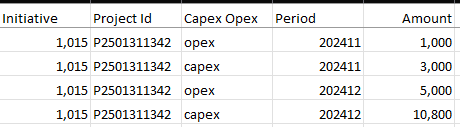
Notes:
If there are multiple entries with the same Initiative ID, Project ID, Capex/Opex, and Period, only the last entry will be considered.
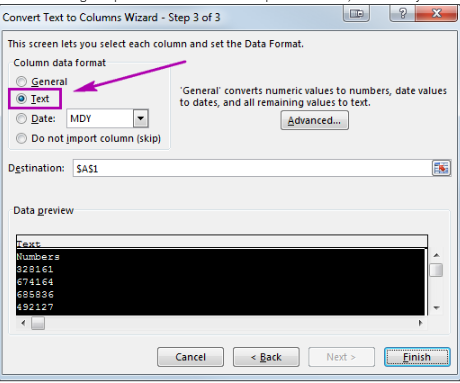
The Project Id column must be in a text string format. Steps to convert to string format on Excel:
Select the column where you want to convert numbers to string in Excel.
Navigate to the Data tab in and click on the Text to Columns icon.
A wizard will open. Just click through steps 1 and 2. On the third step of the wizard, make sure you select the Text radio button.
Press Finish to see your numbers immediately turn into text.
The template files have 3 hidden columns towards the end, please do not edit those columns as they are used for data validation.
Forecasts Upload:
Stratex allows users to upload an Excel spreadsheet containing forecast data, which is then transferred into the forecast transaction page under ‘Progress’. A template can be downloaded and completed prior to upload.
Key Concepts
Features of the forecasts upload are as below:
Initiative ID (Internal – assigned within Stratex)
Project ID (External – assigned manually during project creation)
Capex/Opex labels
Forecast From (The forecast version)
Period (YYYYMM – e.g. 202501 for January 2025)
Amount
Export
Instructions
To Upload:
Navigate to Administration > Utilities > Upload > Forecast and download the template.
Input forecast data for the relevant projects into the Excel template provided.
Upload and validate the forecast spreadsheet. If all fields are complete and correct, each initiative will validate successfully (confirmation shown via pop-up).
Select ‘Start’. Once complete, the capex and opex forecasts for the projects will be visible under Progress > Forecasts.
Using the export option, admins can download an Excel file that identifies errors in the upload file on a row-by-row basis, making it easier to review and correct issues.